
Purpose: Print one sign for your event, and a company representative who never registered can scan it, register on their phone in about a minute, and walk to the desk with a QR ready to check in.
The problem this solves
Some company representatives show up without registering first. Until now someone at your desk had to stop, type in their details, and attach them to their company while the line grew. With walk-up registration, the representative does that on their own phone from a sign at the door. Your desk just scans and prints the badge, the same as for everyone else.
Before you start
- You are an association admin. Only admins can turn this on and print the sign.
- The event uses vendors and badges. The walk-up setting only appears on events that have both.
- The companies you expect are registered for the event. A representative can only register with a company that is already registered for it.
Turn on walk-up registration for the event
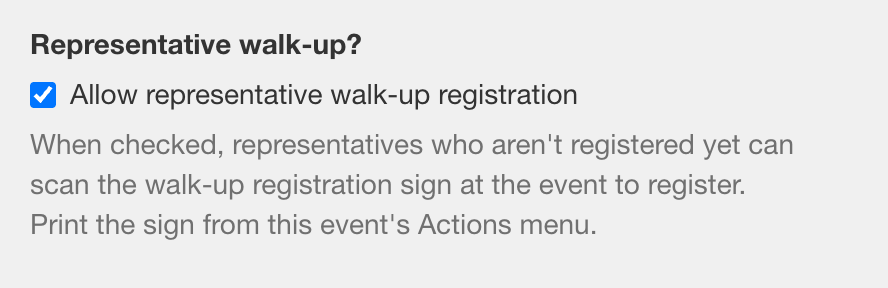
Edit the event and go to its last step, Review & Publish. Under Representative walk-up?, check Allow representative walk-up registration, then save the event.
- Walk-up stays open until you uncheck the box. There is no start or end date to set.
Print the walk-up registration sign
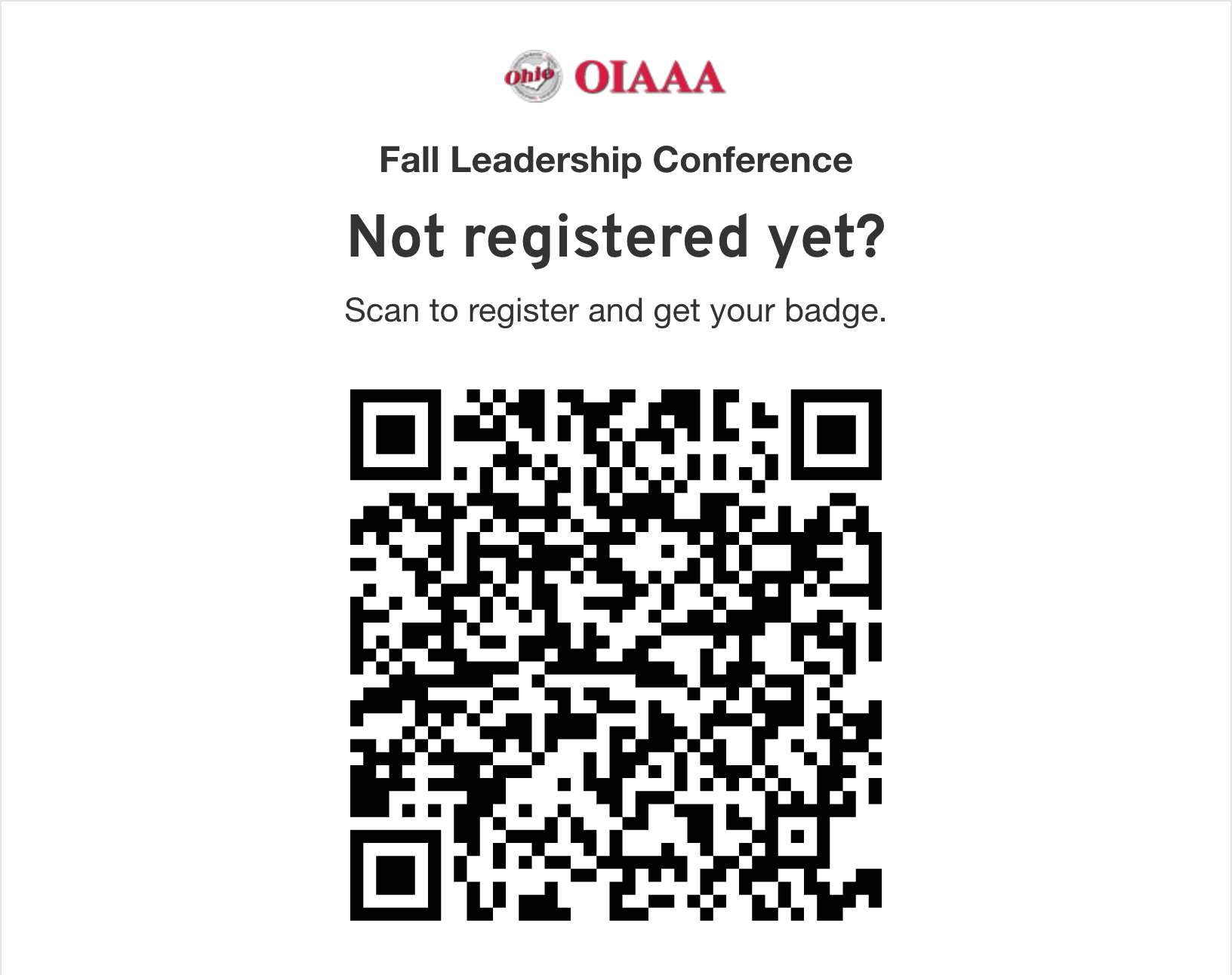
Open the event’s Actions menu, choose Walk-up registration sign, and click Print sign. The printed sign also shows a short web address under the QR code, for anyone whose phone won’t scan.
- To show the sign on a screen instead, turn the screen brightness up so phones can read it.
- If walk-up is off, the sign page warns you. Scanning it then shows a “registration isn’t open” page, so turn the setting on before the doors open.
What the representative does on their phone
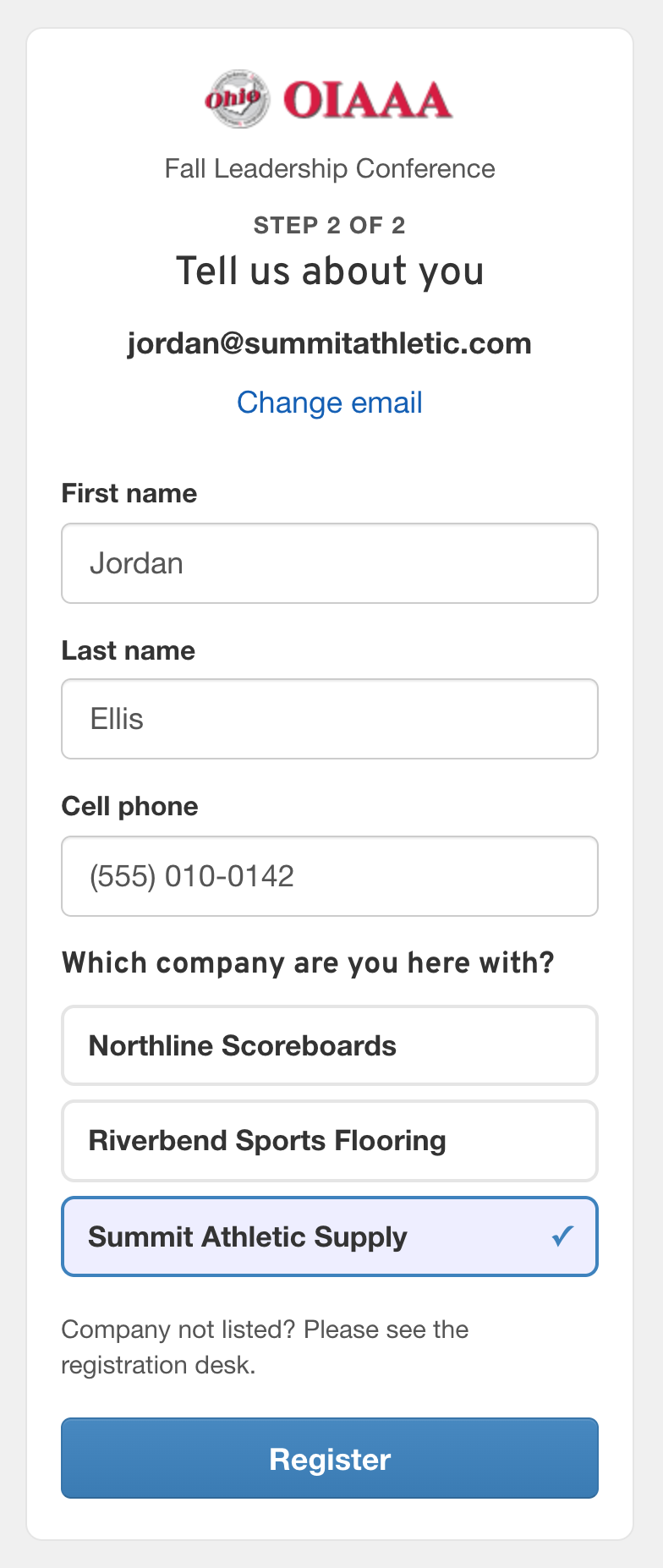
This is the representative’s screen, not yours. Scanning the sign opens a page for your event. They enter their email and tap Continue. Someone new then adds their name and cell phone, picks the company they are here with, and taps Register.
- A representative you already know only enters their email. They pick a company only if they represent more than one.
- A representative who is already signed in skips the email and just taps Register.
- With more than eight companies at the event, they search for theirs instead of picking from a list.
- If their company isn’t listed, the page tells them to see the registration desk.
The representative gets their check-in QR
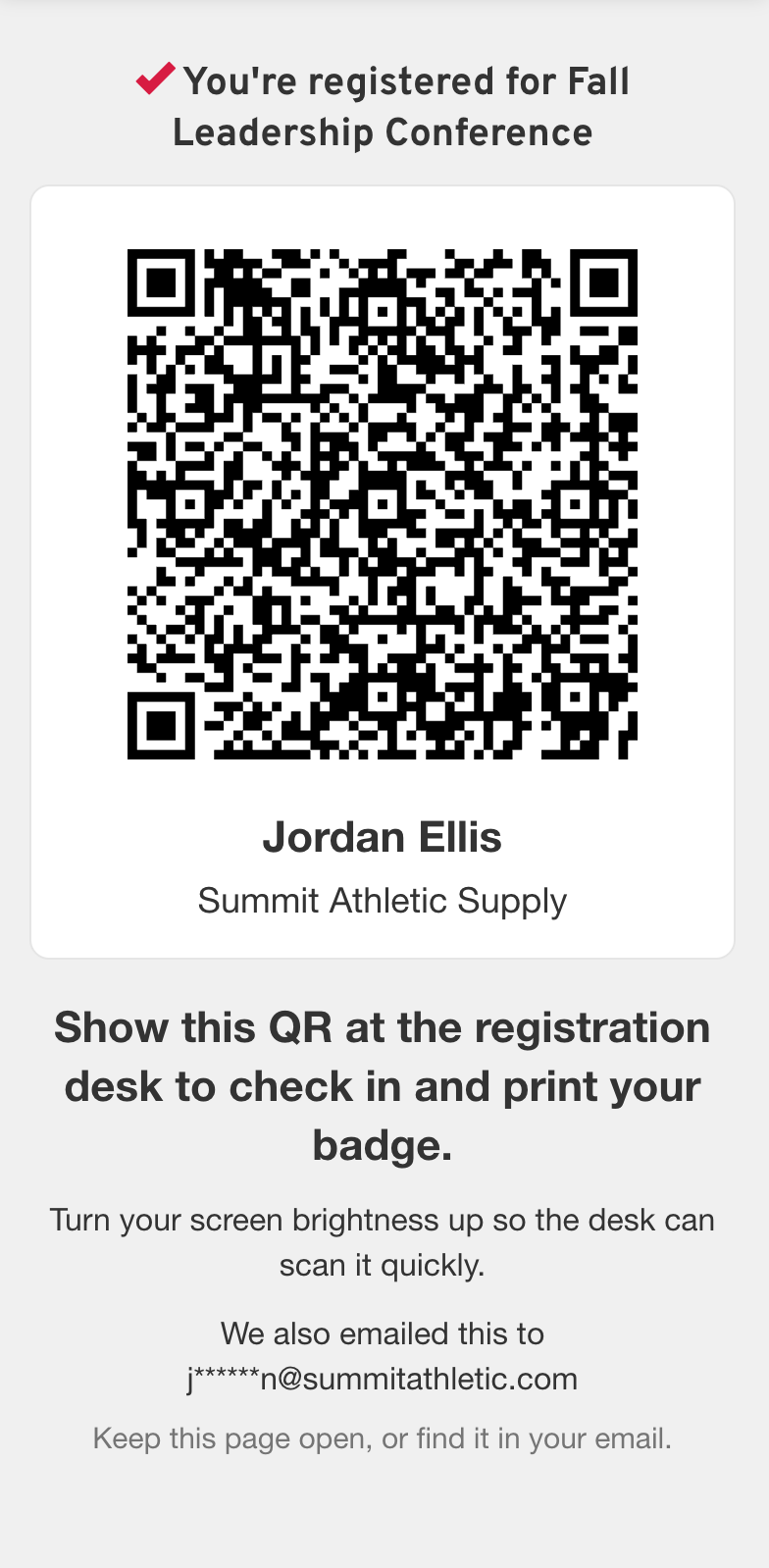
This is also the representative’s screen. Right after they register, their QR appears, and a copy is emailed to them. They can keep the page open or find it in their email.
- Scanning the sign again later takes them straight back to this QR.
- Signed in, they can also open it from Check-in QR on their events.
Check them in at the desk
Open the event’s Actions menu and choose Check In Mode, as you would for any representative. Scan their QR and click Print Badge. Anyone who can take attendance for the event can do this.
What you end up with
A sign at the door that registers representatives for you. Each walk-up registration lands on the event exactly like one their company made ahead of time, and each representative reaches your desk with a QR that checks them in and prints their badge in one scan.
Good to know
It costs the company the same as registering ahead. A walk-up registration is billed to the representative’s company exactly like any other representative registration for the event.
Only companies registered for the event appear. Representatives can’t add a new company at the door. Register the company for the event first, or handle that one at the desk.
New representatives get an account. Someone registering for the first time receives the usual email for their new account, alongside the email with their QR.
Shared mailboxes are turned away. An address like info@ is refused, and the representative is asked to use their own email.
Next year’s event keeps the setting. When you use Duplicate to Next Year, walk-up registration comes along already turned on.
If it doesn't work
Scanning shows “Walk-up registration isn’t open for this event.” The setting is off. Turn it on in the event’s Review & Publish step. The sign itself doesn’t need reprinting.
There’s no walk-up setting, or no sign in the Actions menu. The event doesn’t use both vendors and badges. Walk-up registration only works for events that have both.
The representative sees “Your company isn’t registered for this event.” They are signed in, and none of the companies they represent is registered for this event. Register the company for the event, or register them at the desk.
The representative sees “We couldn’t register you here.” Something about their account needs a person to look at it. Register them at the desk.
The desk scan says the person “isn’t connected to a company yet.” Add them to their company’s representatives, then scan their badge again.