
Purpose: Send every registered member and vendor representative one email before your event with the badge AMP will print for them, a link to the event page, and how to fix anything that is wrong, either right now from the event’s Administrative menu or on a date you schedule.
The problem this solves
The week before an event, attendees start asking the same questions: what does my badge say, where do I find the schedule, who do I call. Most badge mistakes surface at the check-in table, when the only fix is a pen or a reprint.
A pre-event readiness email answers those questions before anyone travels. Each attendee gets their own badge exactly as AMP will print it, a link to the event page, and a way to fix their details. Send it once most people have registered and before you print badges, so a fix an attendee makes still reaches their badge. A week or so before the event works for most conferences.
Before you start
- You are an association admin who can edit the event.
- The event uses AMP badges for the people you are emailing. Use AMP Member Badges is checked for members, and Use AMP Vendor Badges for vendors, on the event’s AMP Attendee Badges step.
- The event has not ended and has not been archived.
Send the emails from the event's Administrative menu
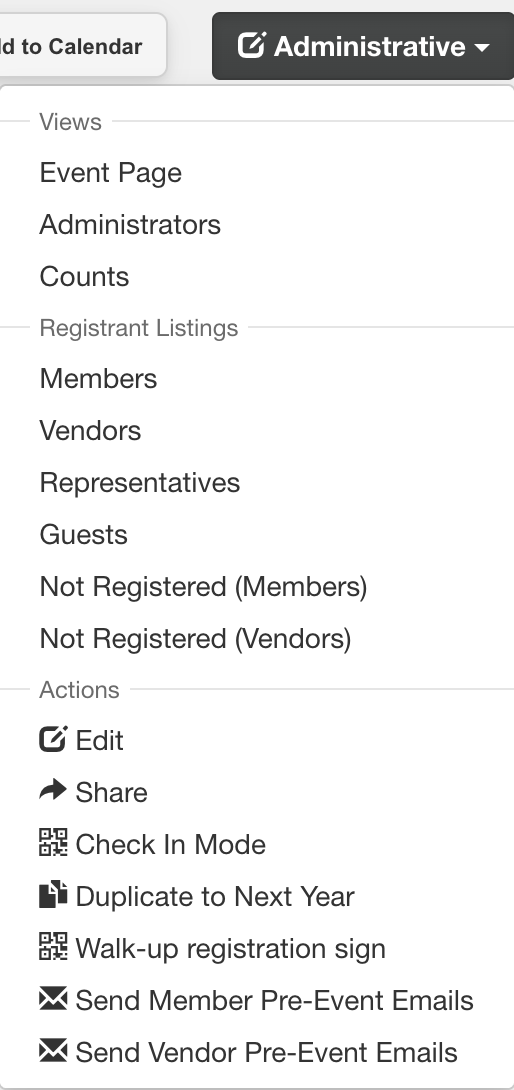
Open the event, click Administrative, and under Actions choose Send Member Pre-Event Emails or Send Vendor Pre-Event Emails. AMP asks you to confirm, then queues the emails and takes you to the event’s attendee list.
- Send Member Pre-Event Emails goes to every registered member and every guest they registered.
- Send Vendor Pre-Event Emails goes to every registered vendor representative.
- Each item appears only when the event uses AMP badges for that type, so an event with member badges only shows just the member item.
- Both items disappear once the event has ended.
What your members receive
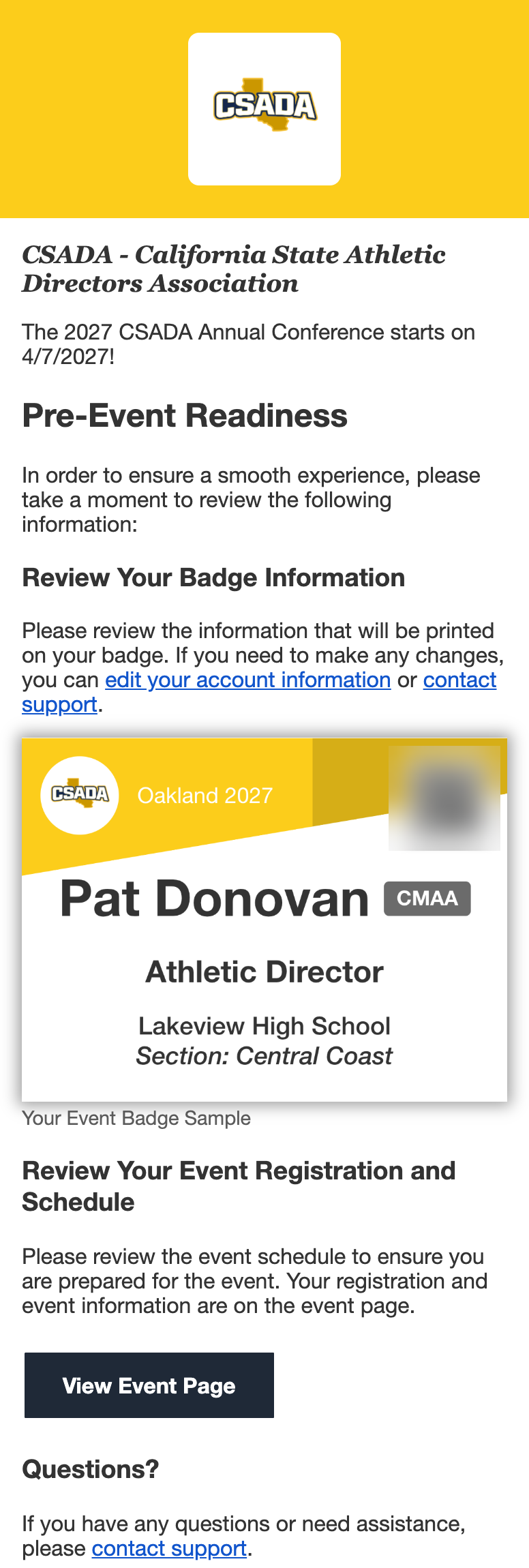
This is the member’s inbox, not yours. The subject is the event name followed by Pre-Event Readiness, and the email opens with the date the event starts.
- Review Your Badge Information shows their badge with their name, position and workplace, plus links to edit your account information or contact support if something is wrong.
- Review Your Event Registration and Schedule has a View Event Page button for their registration and the event schedule.
- Guests get the same email with their own badge.
What your vendors receive
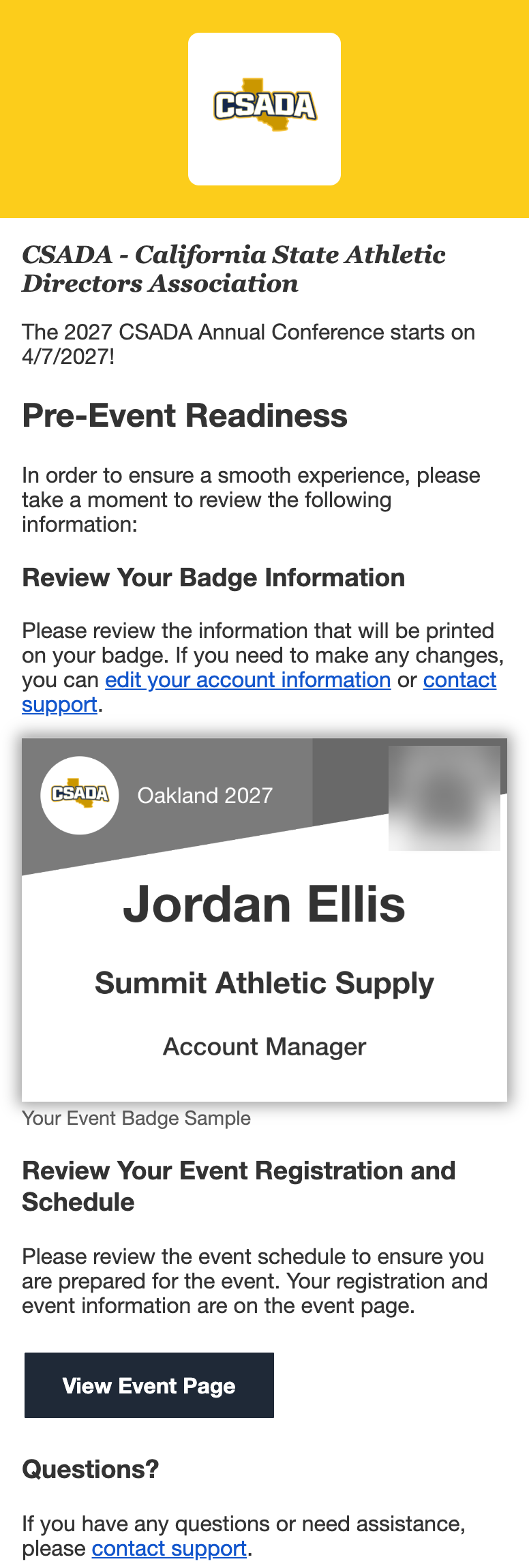
This is a vendor representative’s inbox. The email is the same as the member version, but the badge is the vendor badge, so it shows the representative’s company and title. Each representative gets their own email and their own badge.
Resend it to one attendee
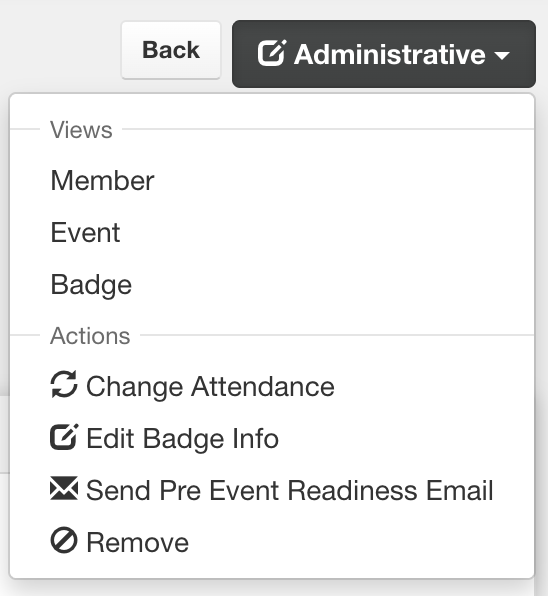
When one person says they never got it, or fixed their email address after you sent, send them their own copy. On the event’s attendee list, click View for the attendee, then choose Administrative → Send Pre Event Readiness Email. AMP sends it right away and confirms who it went to and at what address.
- Only that attendee gets an email. Nobody else is re-sent.
- Replies to this email come to you.
- It still works after the event has ended, until the event is archived.
Schedule the send on the AMP Attendee Badges step
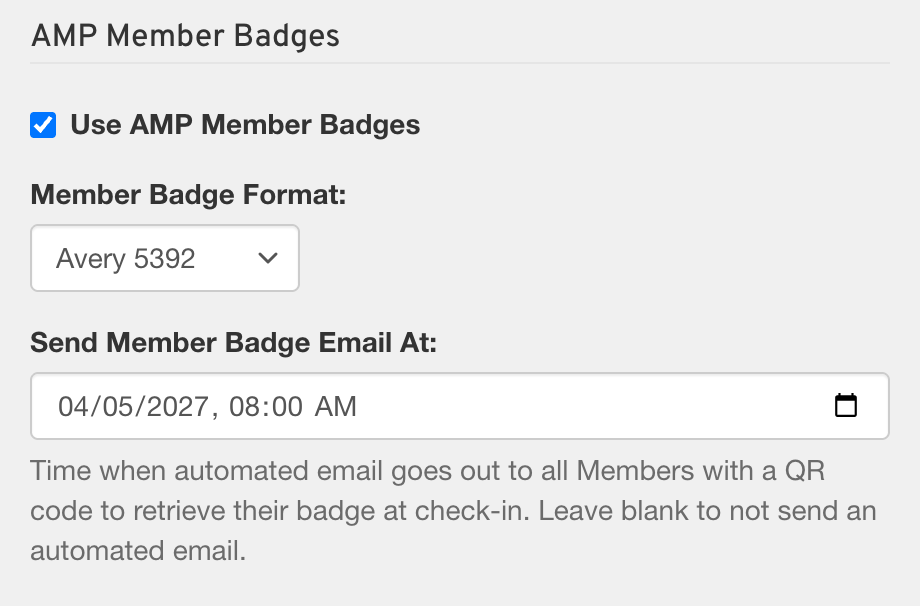
If you would rather set it and forget it, edit the event, open the AMP Attendee Badges step, and fill in Send Member Badge Email At and Send Vendor Badge Email At with the date and time each email should go out. Click Save & Continue. At that time AMP sends the same email as the Administrative menu, to everyone registered at that moment.
- Each field appears only while its Use AMP Member Badges or Use AMP Vendor Badges box is checked.
- When the scheduled send finishes, AMP emails a confirmation to the addresses in the event’s Administrative Emails. If that is blank, it goes to the event’s coordinators, or to your admins.
What you end up with
Attendees who arrive knowing what their badge says and where the schedule is, and fewer badge fixes at your check-in table. Members and vendors each get the version of the email that matches their badge, on the day you picked, and you can resend to anyone who missed it.
Good to know
“Registered” means every registration, finished or not. The email goes to everyone registered for the event, including people whose registration is not paid or not complete yet.
Placeholder addresses are skipped. An attendee with a placeholder email address on their account does not get the email.
A scheduled send goes out once. To send again later, use the Administrative menu.
Unchecking a badge type clears its schedule. If you uncheck Use AMP Member Badges, the Send Member Badge Email At time is removed with it, so check the time again if you turn badges back on.
Duplicate to Next Year moves the schedule forward a year. Next year’s event starts with the send time one year later. Check it once next year’s dates are set.
The check-in QR code comes with onsite printing. The email adds a Registration Check-In QR code only when Is Member Badge Printing All Onsite (or the vendor version) is checked for that badge type. Without it, the email has no check-in code.
If it doesn't work
There is no Send Member Pre-Event Emails or Send Vendor Pre-Event Emails item. Check that Use AMP Member Badges or Use AMP Vendor Badges is checked on the event’s AMP Attendee Badges step, and that the event has not ended or been archived. Once it has ended, resend to one attendee from their page instead.
An attendee’s page has no Send Pre Event Readiness Email item. The event must use AMP badges for that attendee’s type, and the person must be registered for the event.