
Purpose: Pick the nominees you want, then bring them into your event as attendees and email their nominating coaches, all without retyping a single name.
The problem this solves
When an award picks people for an event, like an All-Star game, the selected nominees still have to end up on that event’s attendee list, and their coaches have to hear about it. Retyping a roster by hand is slow and easy to get wrong.
Now you make your picks on the nominations list, export them, and import that same file into the event. The example here is a football All-Star game, choosing athletes by team and position.
Before you start
- Nominations for your award have been submitted.
- The event your selected nominees will attend has been created.
Narrow the nominations to one team and position
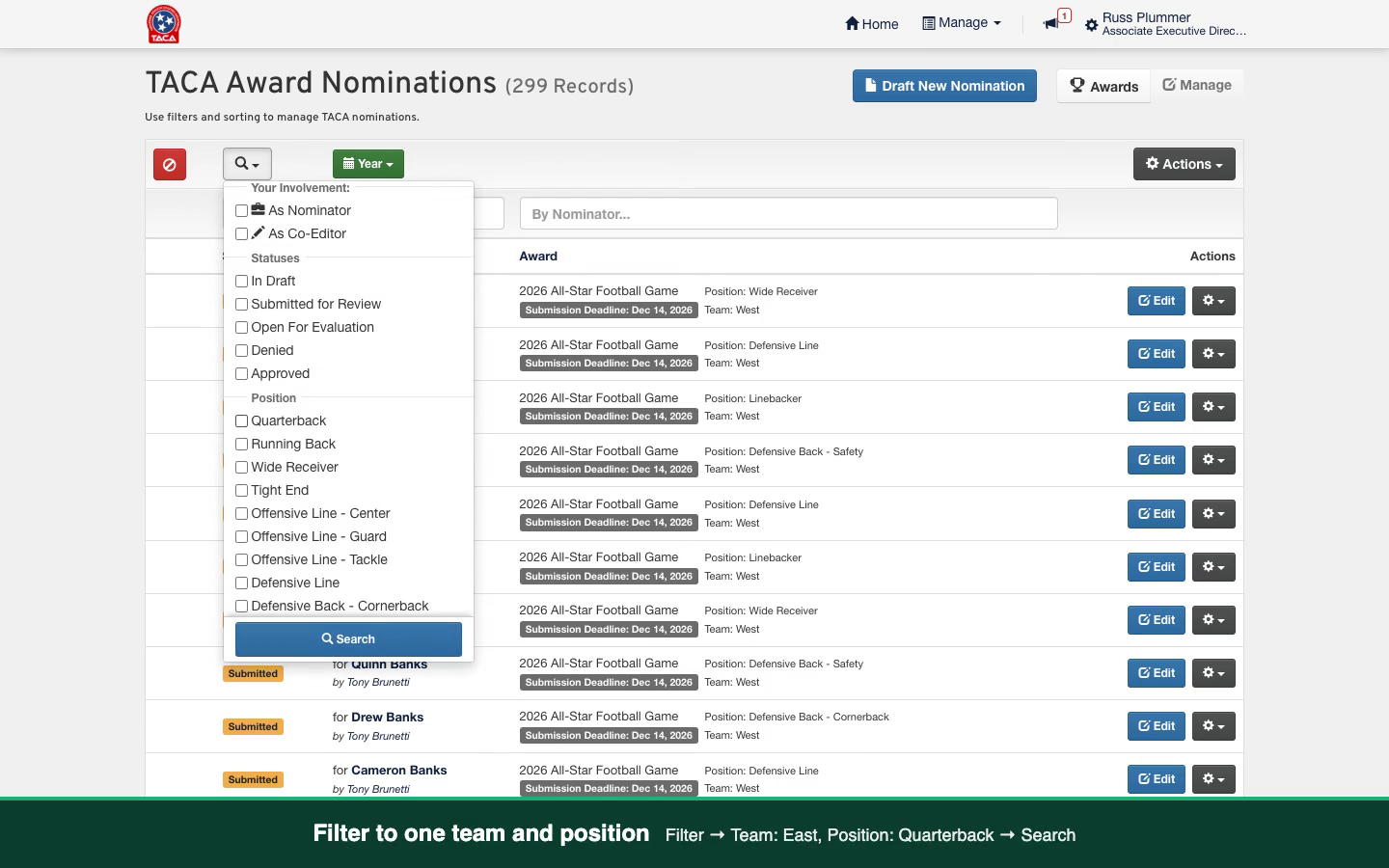
Go to Manage, then Award Nominations. Choose this year under Year, then open the filter menu, check the team and position you are choosing, and click Search.
Approve or deny each nomination
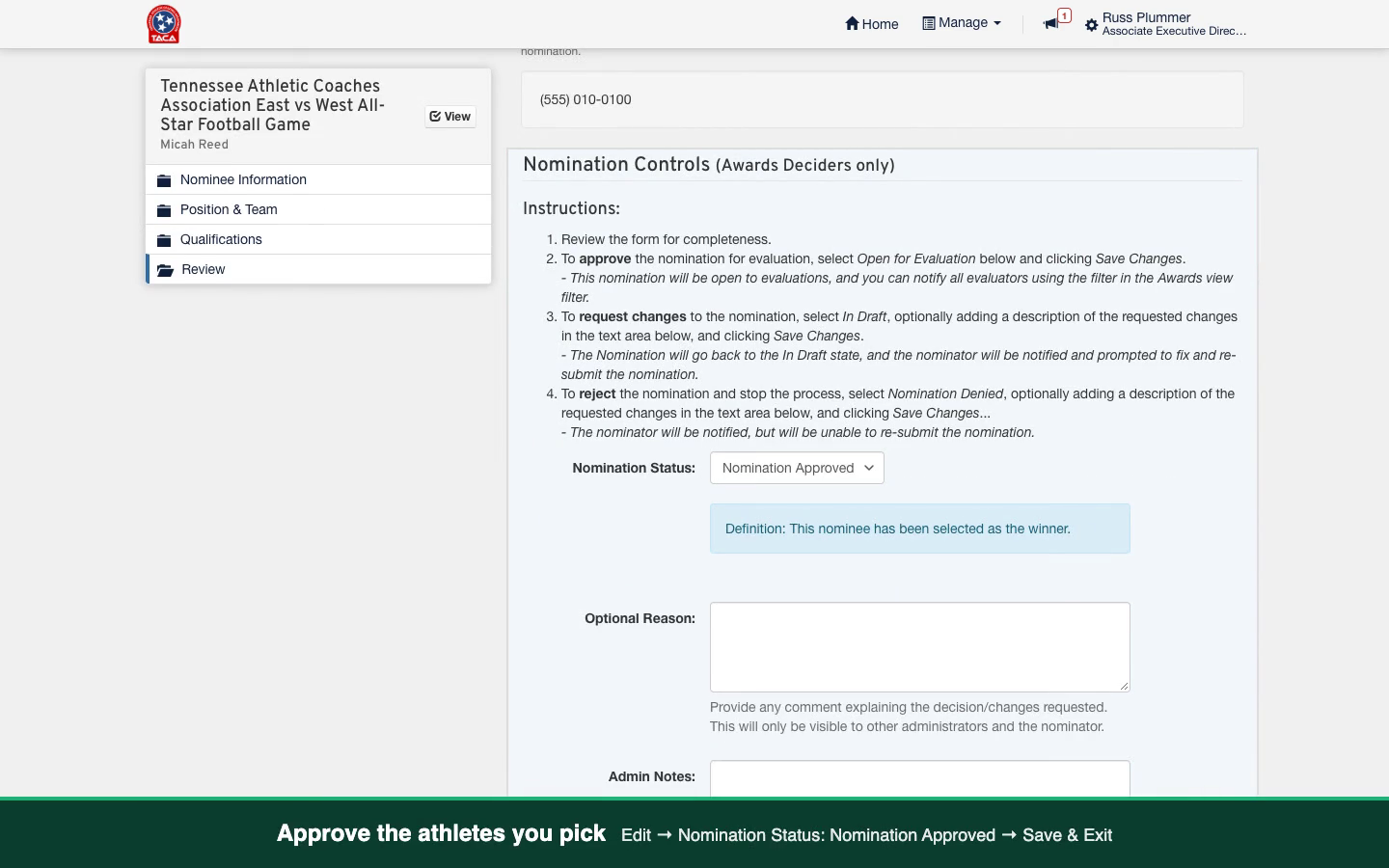
Click Edit on a nomination you want, set Nomination Status to Nomination Approved, and click Save & Exit. You land back on the same filtered list, so you can move straight to the next one.
- For a nominee you are not selecting, choose Nomination Denied instead.
- Repeat for each team and position until your roster is set.
Export the approved list
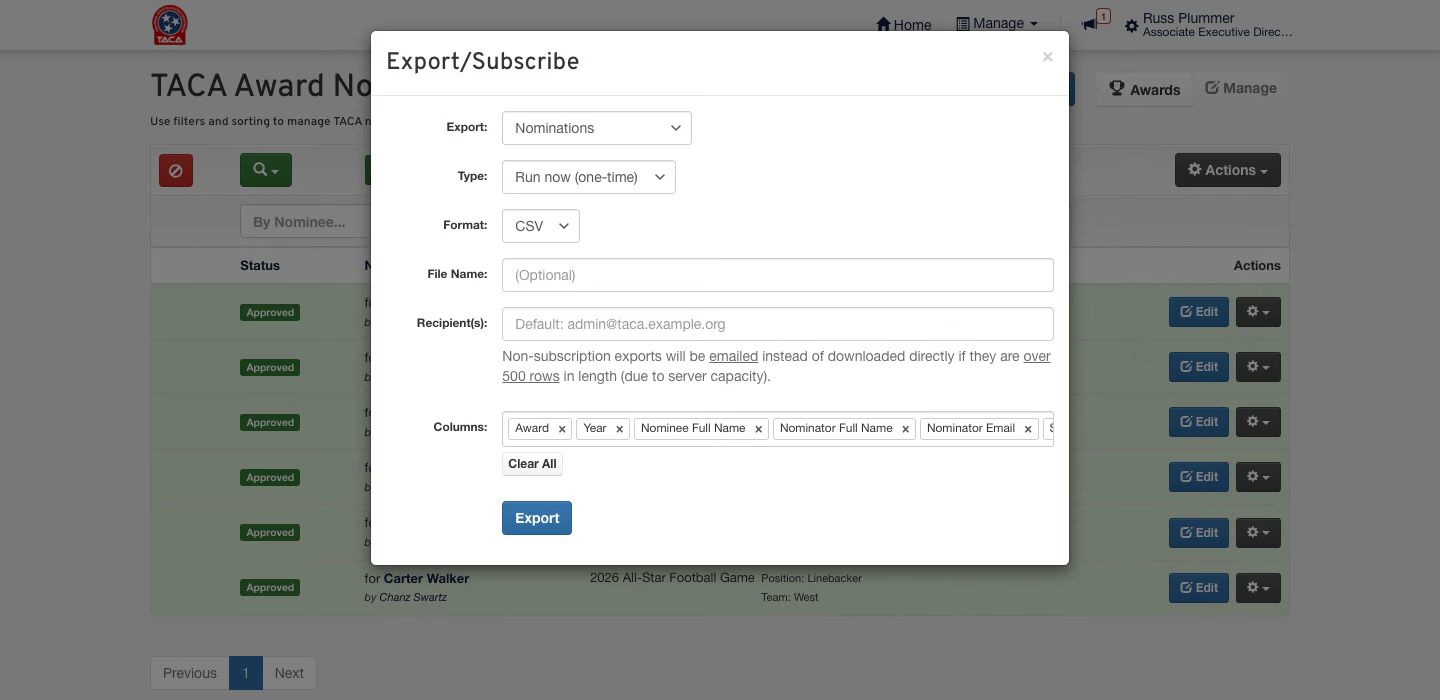
Open the filter menu again, uncheck the team and position, check Approved under Statuses, and click Search. Then open Actions, choose Export, click Export, and Download the CSV file.
Prepare the file for import
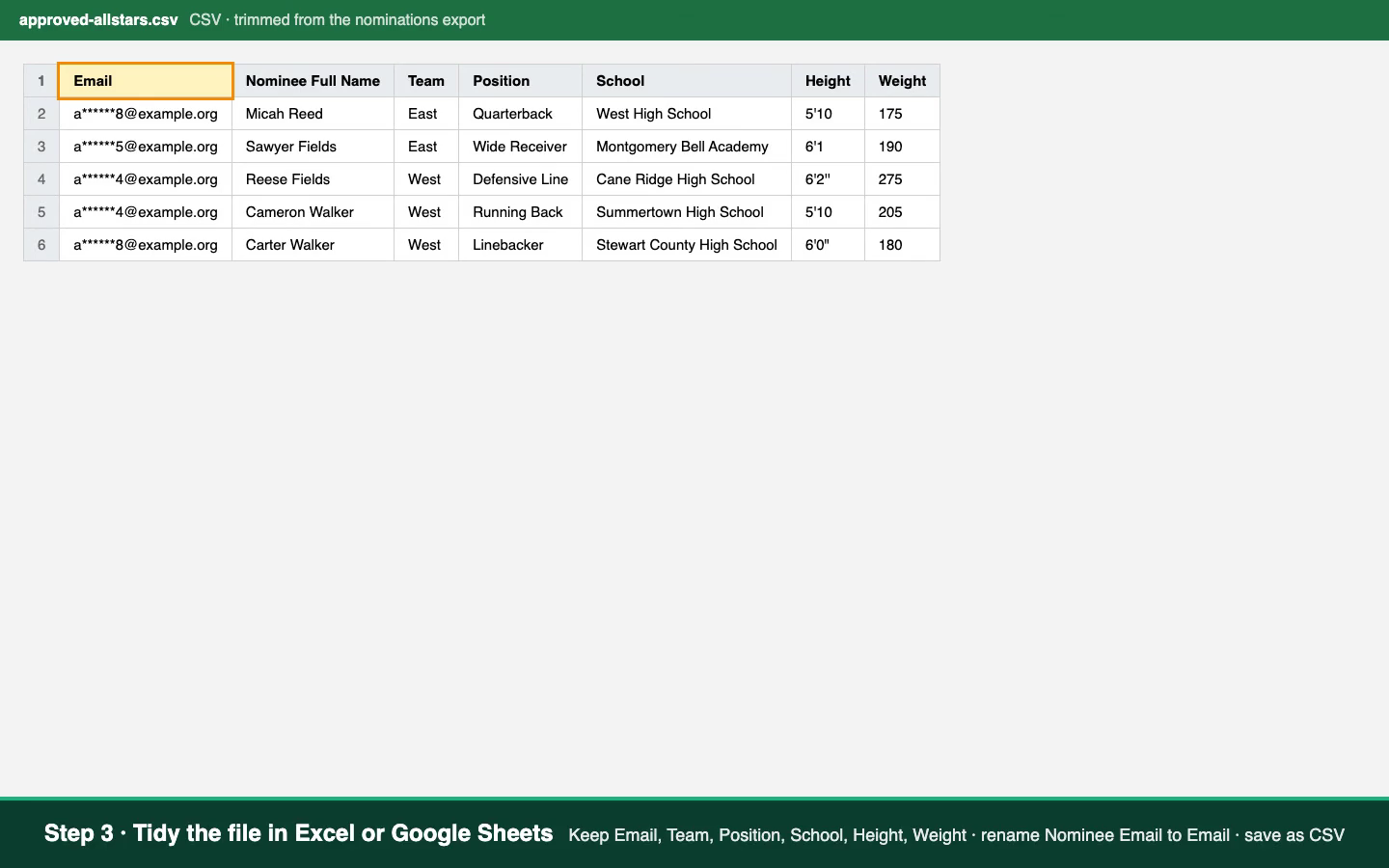
Open the file in Excel or Google Sheets. Keep the columns you need, such as the nominee’s email, team, position, school, height and weight, and rename the Nominee Email column to Email. Save it as a CSV file.
Import the list into your event
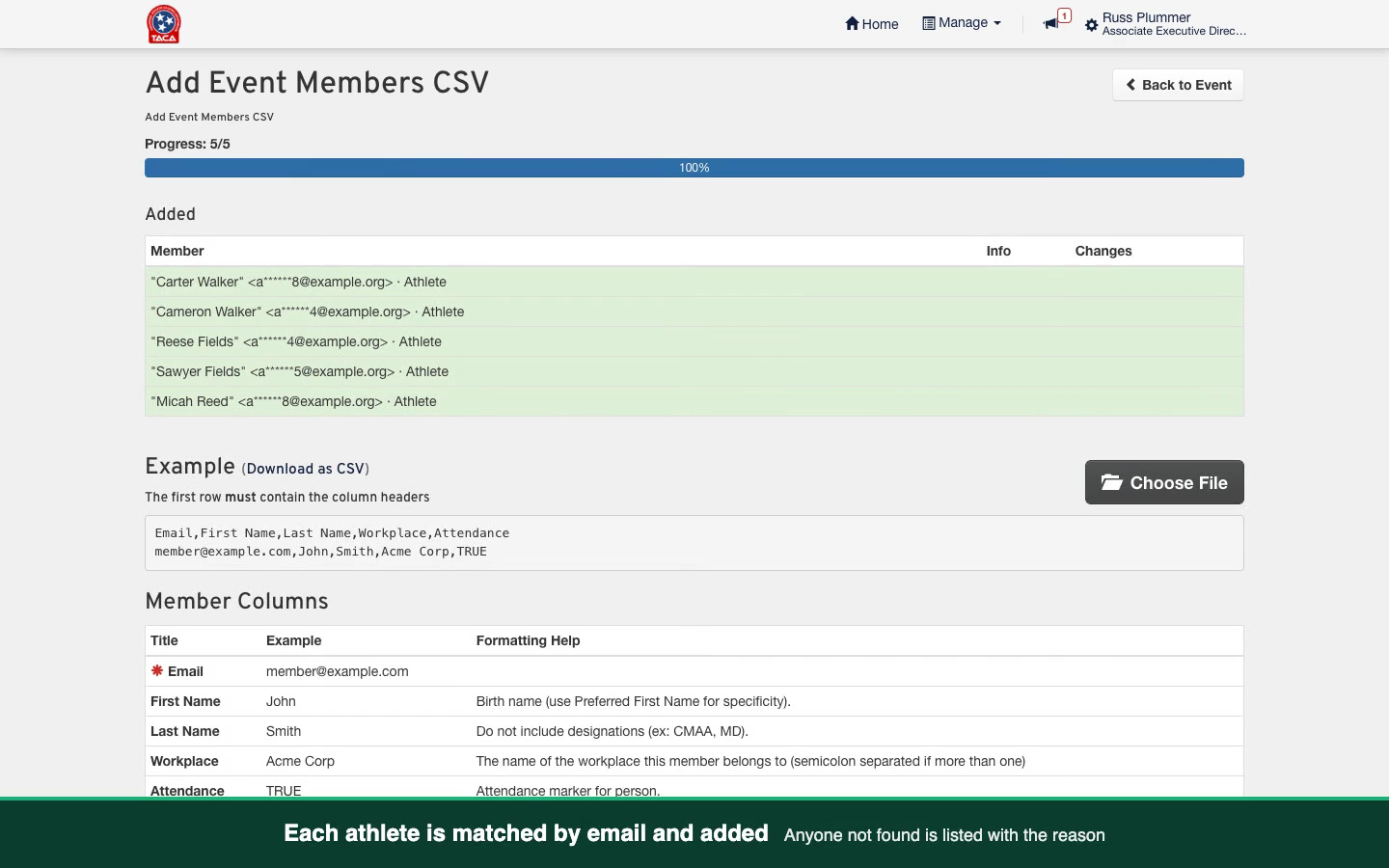
Open the event from Manage, then All Events, and click its name to reach the attendee list. Choose Import, then Add Members, click Choose File, and pick your CSV. Each person is matched by email and added to the event.
Add a straggler one at a time
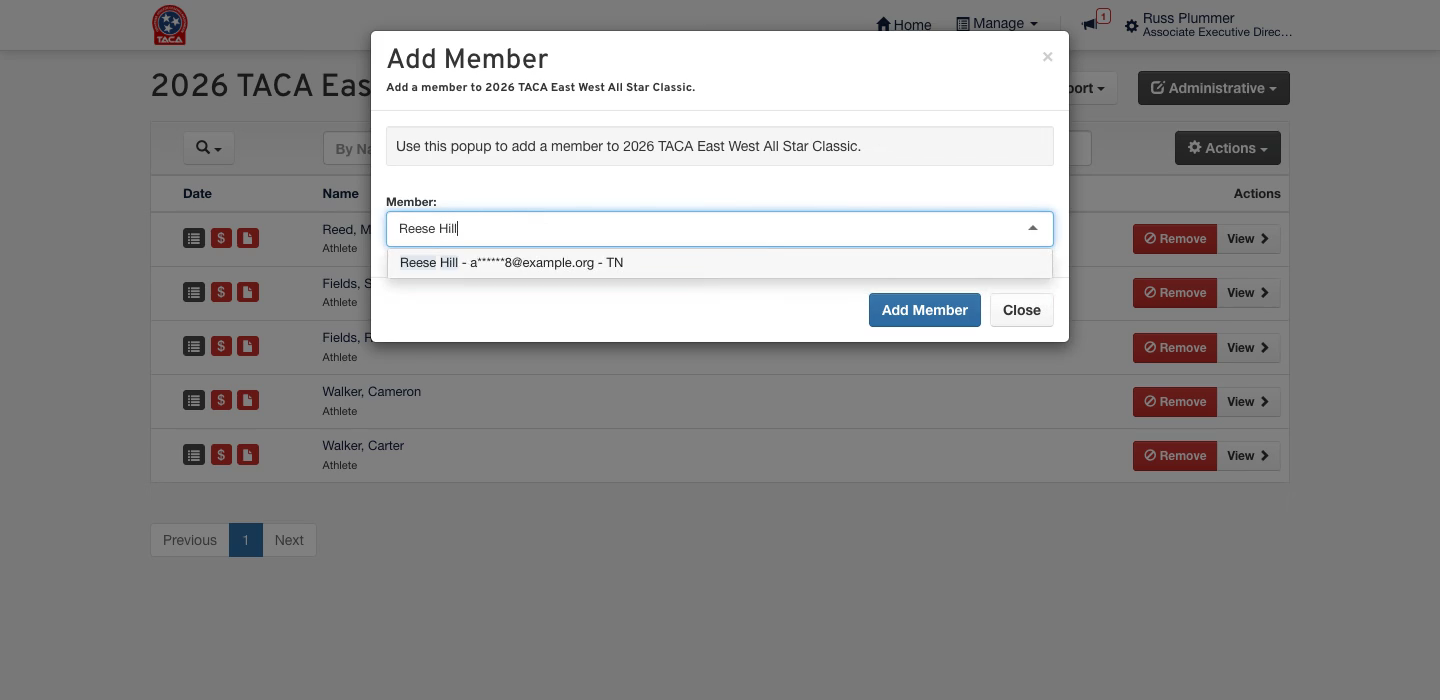
If someone is approved after your import, open Administrative on the attendee list and choose Add Any Member. Search for them, select their name, and click Add Member.
Email the nominating coaches
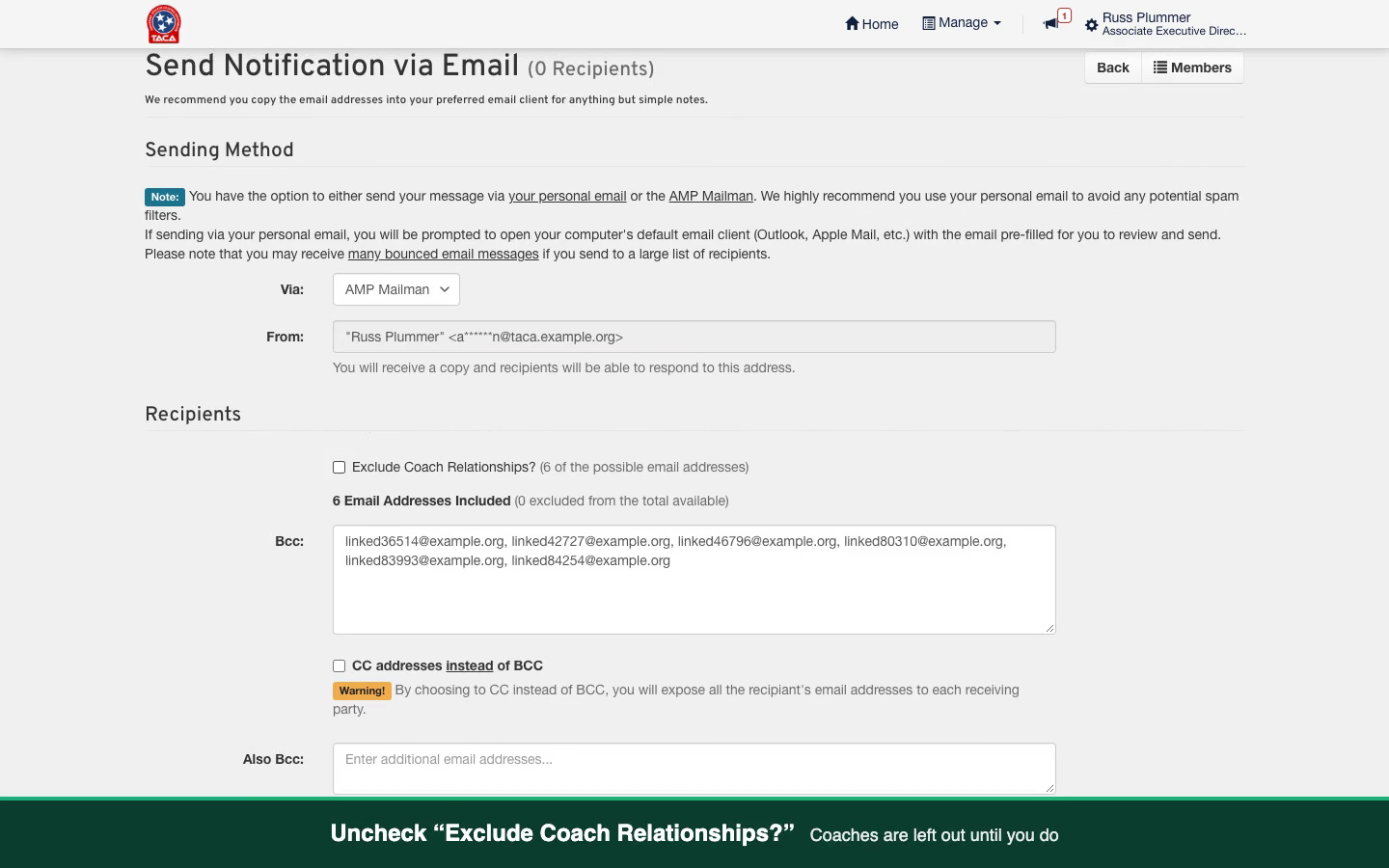
On the attendee list, open Actions and choose Email Authorized Accounts. This writes to the people linked to each attendee’s account, which for a nominated athlete is the coach who nominated them.
- Uncheck Exclude Coach Relationships so the coaches are included.
- Write a subject and message, then click Send Email.
What you end up with
Your selected nominees are on the event’s attendee list, each nomination shows Approved or Denied, and every selected athlete’s nominating coach has your message.
Good to know
Denying a nomination sends no email. Tell the coaches of nominees you did not select in your own way and on your own schedule.
The import adds people; it does not fill in event answers. Team, position and the other columns in your file stay in your spreadsheet. Attendees answer the event’s forms themselves.
A coach only gets the email if they are linked to the athlete’s account. Most nominating coaches already are. If a coach is missing from the recipients, link them on the athlete’s profile first, or add their address under Also Bcc.
Watch it end to end
Watch the full walkthrough (2:48). The narration is AI-generated.