
Purpose: Registration options let members and guests choose which part of your event they are registering for, like the full conference, a single day, or just the awards luncheon, and each choice can carry its own fee.
The problem this solves
Not everyone comes to every part of your event. A retired member might only want the awards luncheon, a spouse might come along for the whole conference, and an athletic director might only get one day away. Without a way to say so, everyone registers for the same thing and pays the same fee, and your staff sorts it out by hand. Registration options let each registrant pick what they are attending, and let you price and find each group separately.
Before you start
- You are an association admin. Only admins can edit an event’s registration options.
- To charge a different price per choice, the event’s fees are already set up under Attendance Fees & Tickets.
Turn on registration options for the event
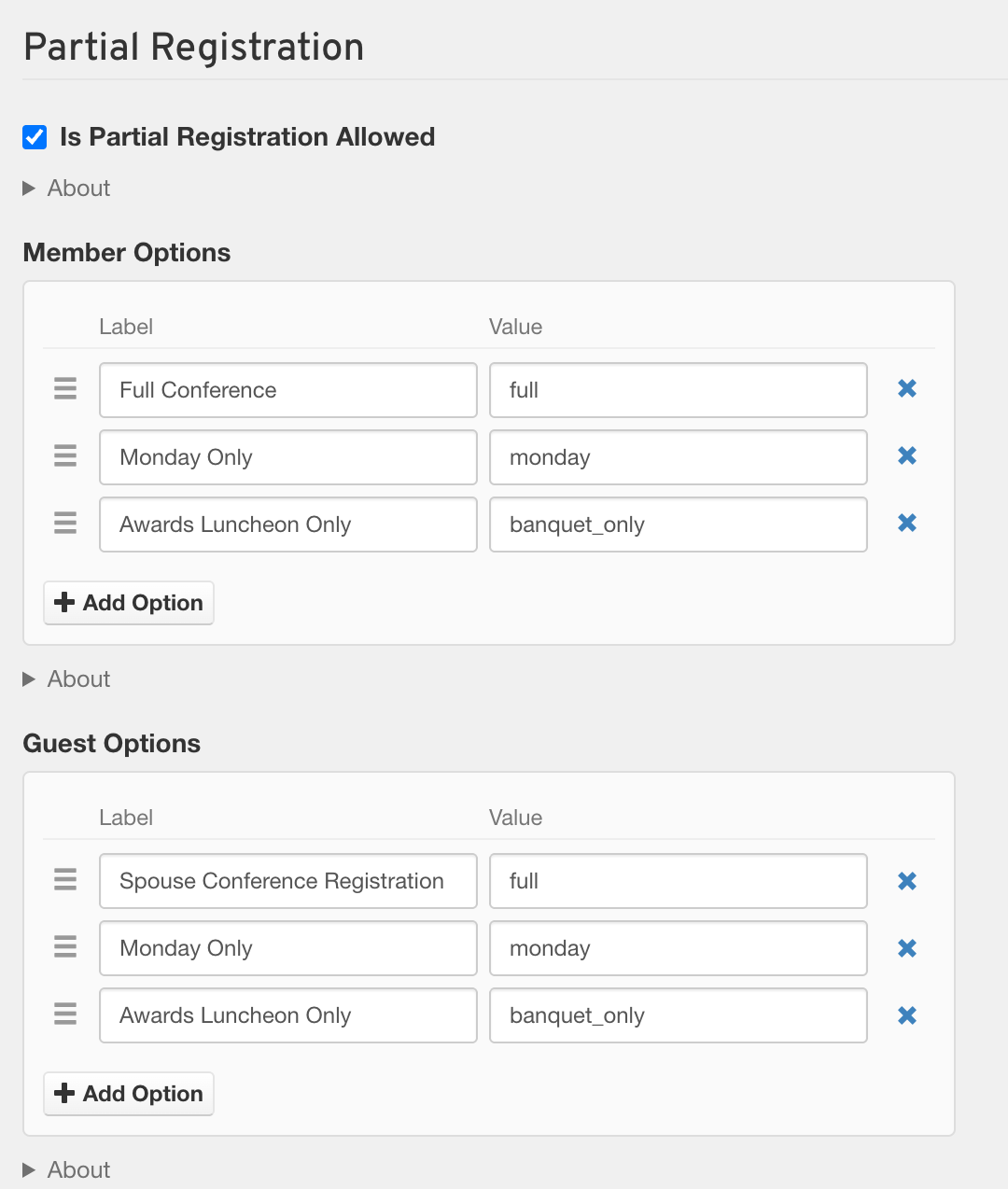
Edit the event and open the Registration Options step. Under Partial Registration, check Is Partial Registration Allowed. Then fill in Member Options and Guest Options. The Label is what registrants see, and the Value is the short name the rest of AMP uses for that choice. Save the event.
- Put your most common choice first. It is the default whenever a choice is missing.
- Give the same choice the same value on both lists, such as full, monday and banquet_only.
- The labels can differ. Guests here see Spouse Conference Registration where members see Full Conference, and both use the value full.
Plan options for members and guests
The three most common setups each have a member side and a guest side. You can offer any or all of them on the same event.
- Awards banquet only. A retired member registers for the awards luncheon and nothing else. A guest can do the same, such as a spouse who joins only for the luncheon. Use the value banquet_only for both.
- Spouse registration. The member registers for the full conference, and their spouse comes along as a guest with their own choice, such as Spouse Conference Registration, at a spouse price.
- A single conference day. A member who can only get away on Monday picks Monday Only. A guest attending that one day picks Monday Only too.
Point each fee at the choice it charges
Open the event’s Attendance Fees & Tickets step and edit a fee. Its Registration field lists your options. Pick the choice this fee is for and save it.
- No Filter means the fee applies to every choice. Leave it there if everyone pays the same.
- To price each choice differently, give each choice its own fee and point each one at its choice.
- A fee for guests lists your guest options, and a fee for members lists your member options.
Find registrants by their choice
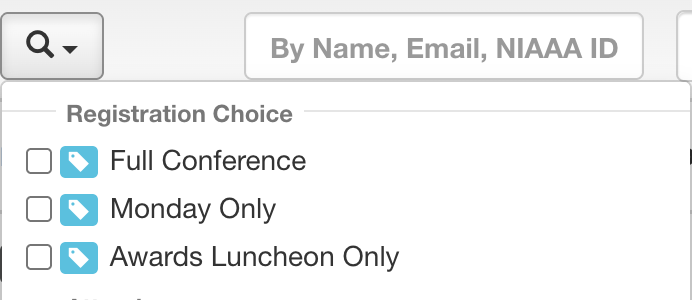
Open the event’s Administrative menu and choose Members, or Guests for your guests. Click the magnifying glass to open Filter By Statuses, check one or more choices under Registration Choice, and click Search.
- Each registrant’s choice also shows on their registration details.
What your registrants see
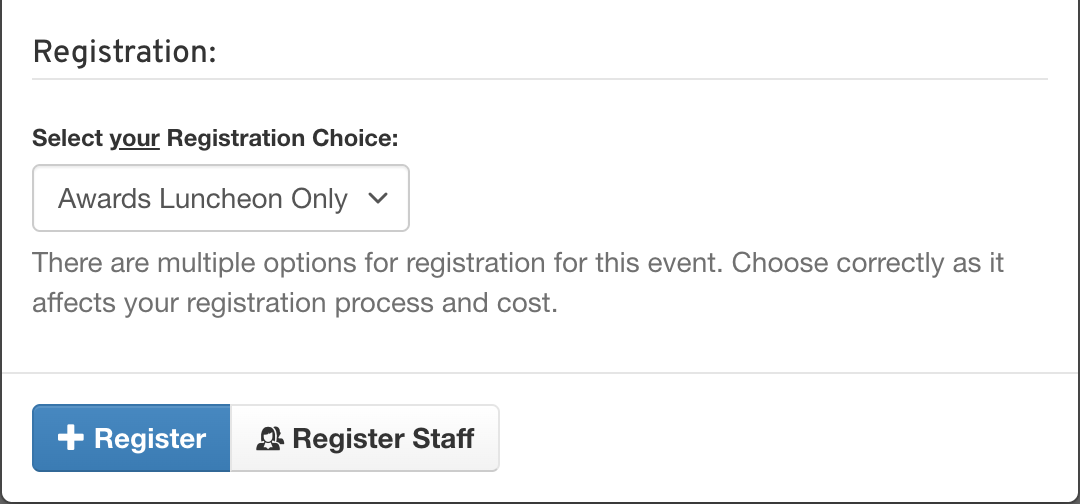
This is the member’s screen, not yours. When a member clicks Register, the window asks them to Select your Registration Choice before they can finish. The fees that follow are the ones you pointed at that choice.
- Each guest gets the same question, labeled with the guest’s name and listing your guest options.
What you end up with
One event that handles full-conference, single-day and luncheon-only registrants, for members and their guests alike. Each registrant pays the fee for what they chose, and you can pull up any group from the attendee list in one search.
Good to know
One option means no question. With only one option on a list, registrants on that list are never asked. They are registered under that option automatically. Use this to give only guests a choice: give members a single option, such as Full Conference.
Never leave the member options empty. Registrants would then be asked to choose between Only Partial Registrations and Exclude Partial Registrations, which are not meant for them. Enter at least one member option of your own.
Banquet-only guests don’t get a conference badge. A guest whose choice has the value banquet_only is left off the badge sheet when you print badges for paid registrants.
Changing a paid registrant’s choice can add a fee. Their payment stays on the old fee, and the fee for the new choice is added to what they owe. Check what they have paid before you change it.
Turning registration options off later is not a clean undo. Registrants and fees keep their old choices until each is saved again. Plan your options before registration opens.
If it doesn't work
Registrants are asked to choose between Only Partial Registrations and Exclude Partial Registrations. The member options were left empty. Enter your own member options and save the event.
Everyone is charged the same fee. Each fee’s Registration field is still on No Filter. Point each fee at its choice.
A fee has no Registration field. The event has no registration options saved yet. Save the Registration Options step first, then come back to the fee.
Registrants don’t see a choice. That list has only one option. Add a second option to ask the question.