
Purpose: Give a section leader a list of their district’s potential members that refreshes itself every month, with an AI summary on top and a link they can use to email everyone on it.
The problem this solves
Section leaders are often the best people to bring former members back, but they can’t build that list themselves. So you export a spreadsheet, email it, and do it again next month, and by then the list has changed. A monthly subscription does that for you. The leader gets a fresh list on the first of every month, a short AI summary of what changed, and a link to the live list they can email straight from AMP.
Before you start
- You are an association admin. Only admins can create subscriptions.
- The section leader has a current membership in your association.
- Your section is a group your members belong to, such as a District.
- Your association lets members email lists from AMP. A few associations limit mass email to admins; there the leader still gets the monthly list but can’t email it from AMP.
Make your section leader a Trusted Member
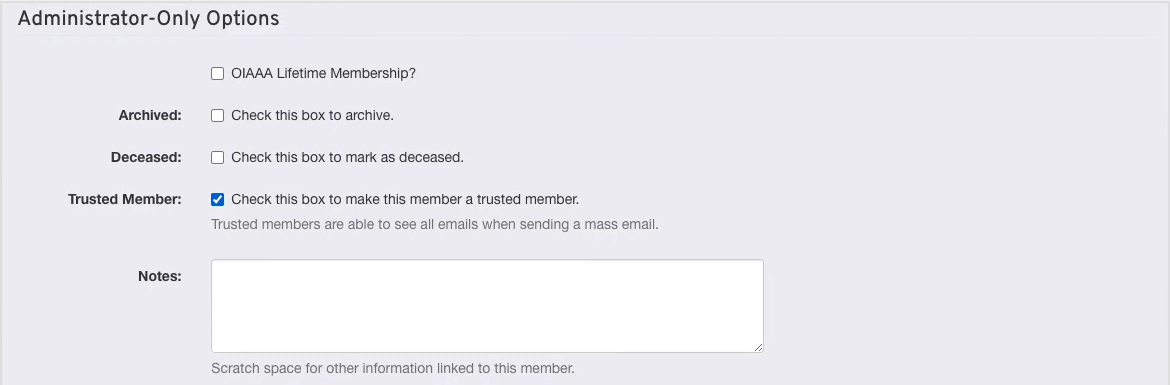
Open Members, search for the leader, and choose Edit from the Actions menu on their row. Under Administrator-Only Options, check Trusted Member and click Save. Without it, the leader can still email the list, but only through AMP, and they never see anyone’s address.
Filter Members down to the section's potential members
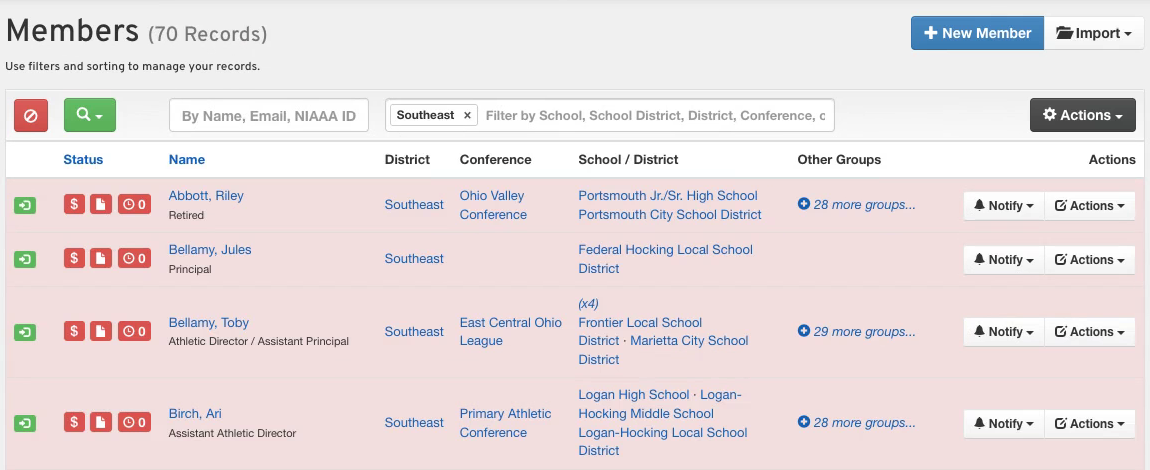
Build the list exactly as the leader should see it. The subscription saves this filter and reruns it every month.
- Type the section’s name, such as Southeast, in the filter box and pick the District group.
- Open the filter menu (the magnifying glass), check Expired under Membership, and click Search.
Subscribe the leader to a monthly export
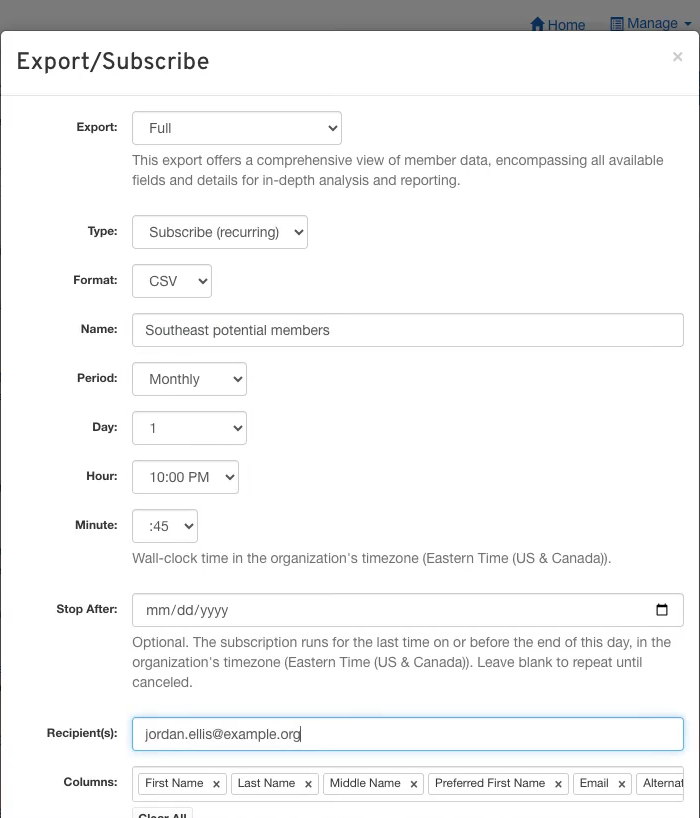
Click Actions, then Export. Choose the Full export and set Type to Subscribe (recurring). Give it a name, set Period to Monthly and Day to 1, and enter the leader’s email address in Recipient(s).
- Leave Format on CSV. The AI summary can’t read Excel files.
- To send it to more than one person, separate the addresses with commas.
Pick the columns and ask the AI a question
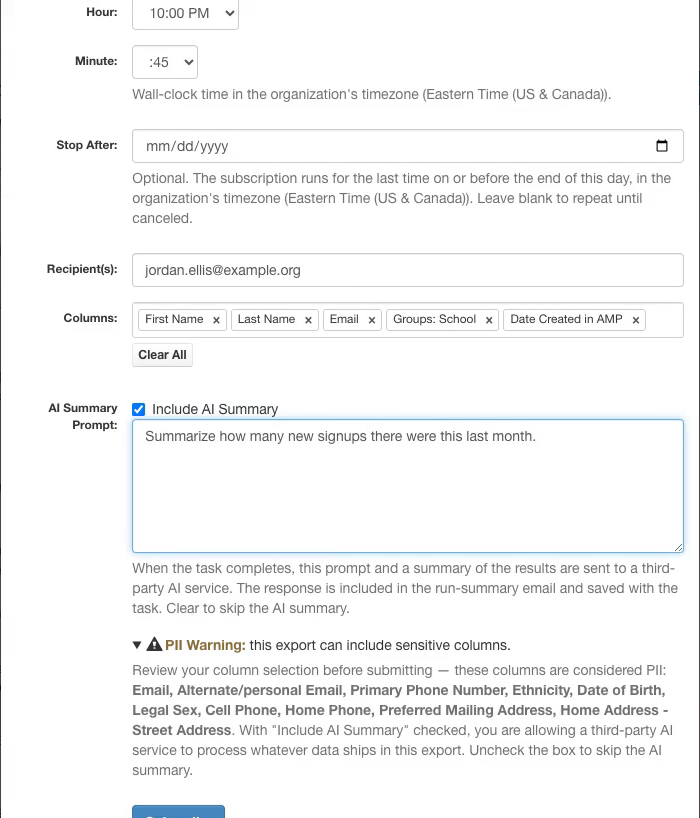
Click Clear All under Columns, then add only what the leader needs. Include Date Created in AMP so the summary can tell who is new. In AI Summary Prompt, ask one plain question, such as Summarize how many new signups there were this last month. Click Subscribe.
What the section leader gets each month
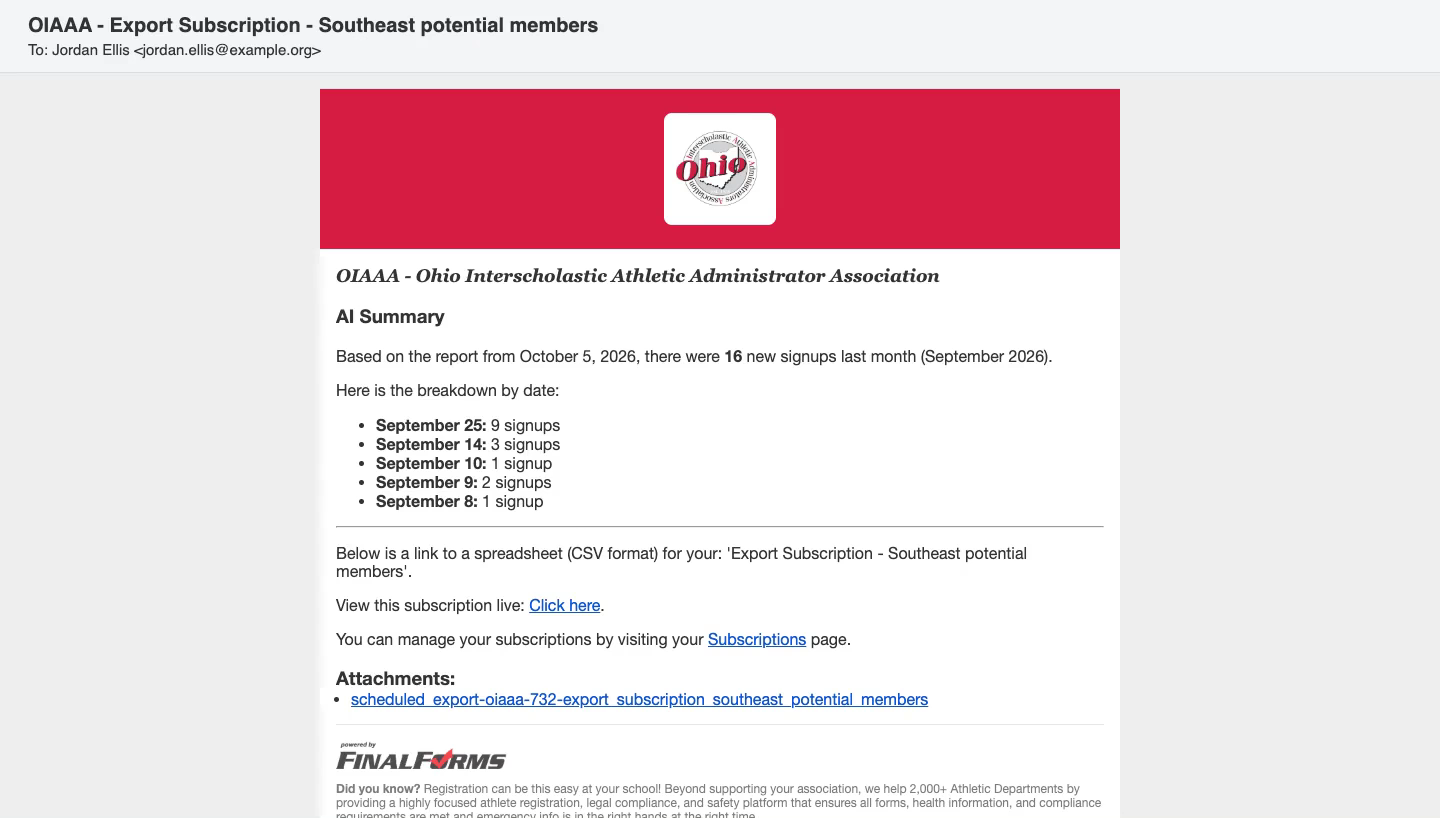
On the first of each month the leader receives this email. The AI’s answer is at the top, the spreadsheet is linked below it, and View this subscription live opens the same filtered list in AMP. They sign in if they aren’t already.
Email the list from the leader's own email
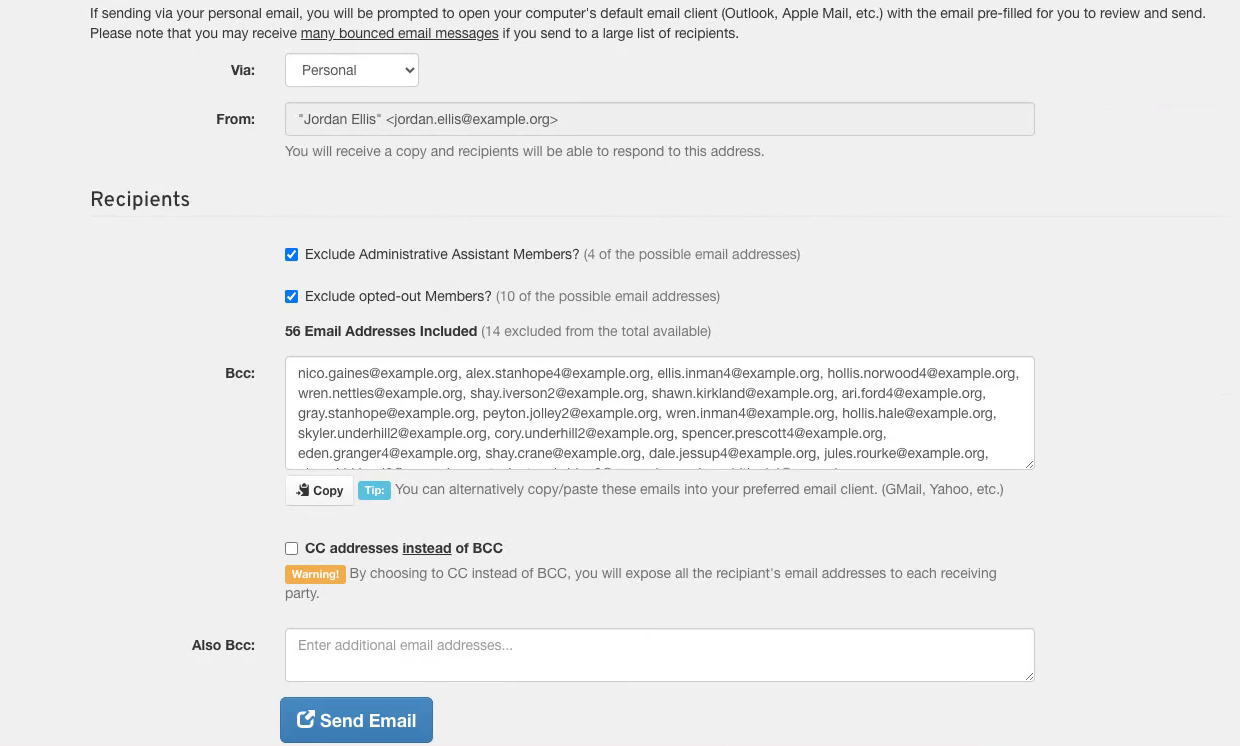
This is the leader’s screen. From the live list they click Email Current Selection. Because they are a Trusted Member, they can set Via to Personal and click Send Email, which opens their own email app with every address on the list in Bcc.
- A list of more than 100 addresses is split up: the button becomes Send Email in Groups, and the leader opens each group as its own email.
What you end up with
A subscription that runs on the first of every month. Each run rebuilds the list from your filter, so new expirations appear and renewals drop off without anyone touching it. You can see or cancel it from your Subscriptions page.
Good to know
The AI only sees the list you filtered. With Expired members only, “new signups” means new member accounts that are already expired. Ask about the list you actually built.
You can reword the prompt later. Open the subscription from your Subscriptions page and edit the AI Summary Prompt before its next run. A run that has already started keeps the prompt it started with.
The AI summary uses a third-party AI service. The rows in the export are sent to it to write the summary. Uncheck Include AI Summary to skip it.
The subscription keeps going to the address you typed. It doesn’t check whether that person is still the section leader. When the leader changes, cancel the subscription from your Subscriptions page, create a new one for the new leader, and clear the old leader’s Trusted Member box.
No Trusted Member box? If your association lets every member see addresses when they send email, the box is hidden because the leader can already see them.
If it doesn't work
The leader only sees AMP Mailman, not Personal. They aren’t a Trusted Member yet, or they aren’t signed in as the account you marked. Open their Edit page and check the box again.
The leader is asked to narrow their selection. Make sure the link they opened still has the district in the filter box. Filtering by a group is what lets a member email a large list.
Watch it end to end
Watch the full walkthrough (2:16). The narration is AI-generated.