
Purpose: The main search box on the Members page now finds positions as well as groups, so you can build a list like every head football coach in your class in a few keystrokes, then email it or download it.
The problem this solves
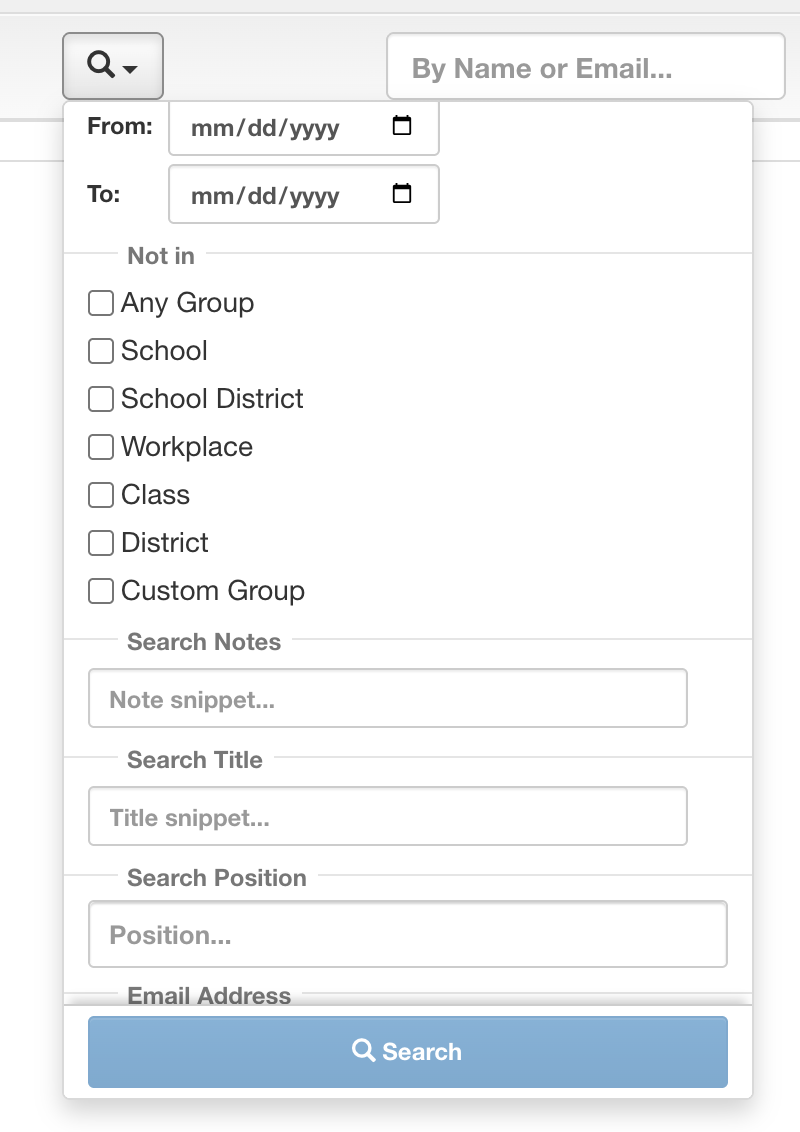
The search box at the top of the Members page used to find only groups, such as a school, a district, or a class. To find people by position, like athletic directors or head football coaches, you had to open the Filters menu and scroll to a separate Search Position box near the bottom. Most people never found it. Positions now live in the main search box, right next to groups.
Type a group or a position into the main search box
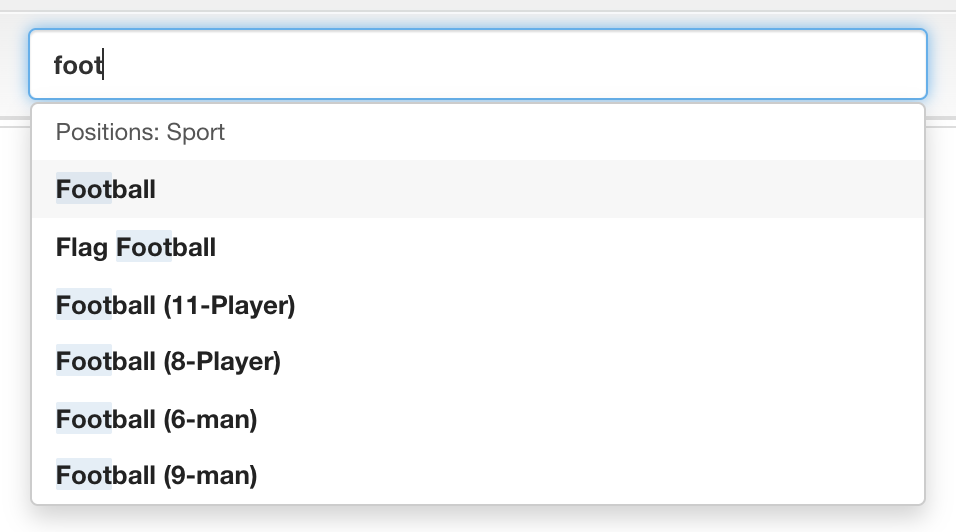
Open Members and start typing in the search box next to By Name or Email. Matching positions appear first, grouped by kind, and your groups follow. Pick one and the list updates.
- Positions include titles such as Athletic Director or Head Coach, plus school level and school type.
- In a coaches association you can also pick a sport, a gender, a team level, or a season.
- Groups work exactly as before: schools, districts, classes, and any custom groups.
Combine groups and positions to narrow the list

Keep adding picks and each one appears as a chip in the box. The record count at the top tells you how many people match. Click the × on a chip to remove it.
- Picks of the same kind widen the list. 3A and 4A together find people in either class.
- Picks of different kinds narrow it. Head Coach and Football together find head football coaches, not every head coach plus every football coach.
- Groups and positions always narrow each other. 3A with Head Coach finds head coaches in 3A only.
Email or export the list you built
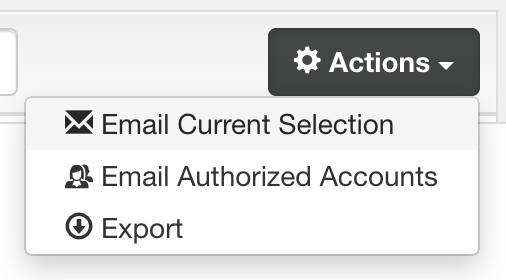
Once the list is right, open Actions to act on everyone in it. This is an admin’s screen, and Export and Subscribe are for admins only. Members see Email Current Selection and a Download spreadsheet button instead of the menu, and both use the filtered list.
- Email Current Selection writes one email to everyone on the list.
- Export runs once with Run now (one-time), or choose Subscribe (recurring) to get a fresh copy daily, weekly, or monthly.
- Any mass actions your association uses in this menu also apply to the filtered list.
What you end up with
A list of exactly the people you meant, such as every athletic director in your league or every head volleyball coach in one district. Members can email it or download it. Admins can email it, export it, or subscribe to it without building the list again.
Good to know
Your old links still work. A bookmarked Members link that used the old position filter opens with those positions as chips in the box.
Search Title is still under Filters. It matches any words in a person’s title, including custom titles. Use it when the position you want isn’t in the list.
Name and email search is separate. Use the By Name or Email box to find one person. The group and position box is for building lists.