
Purpose: Print every paid attendee’s badge that has not been printed yet, mark them printed, and get the still-to-print list by email every morning, so a late payer, a missed day, or a reprint is never lost.
The problem this solves
Printing “everyone who paid yesterday” sounds tidy until someone pays late at night, you skip a day, or a badge gets smudged and needs a reprint. A date window quietly drops all three, and nothing on the page tells you anyone is missing.
Badge print tracking flips the question. Instead of asking who paid in a window, you ask who has paid and does not have a printed badge yet. Anyone on that list stays there until you mark their badge printed, however many days that takes.
Before you start
- The event uses member badges, and badge print tracking is on for it.
- You can see the event’s member list and its Badges menu.
Filter to paid badges that are not printed
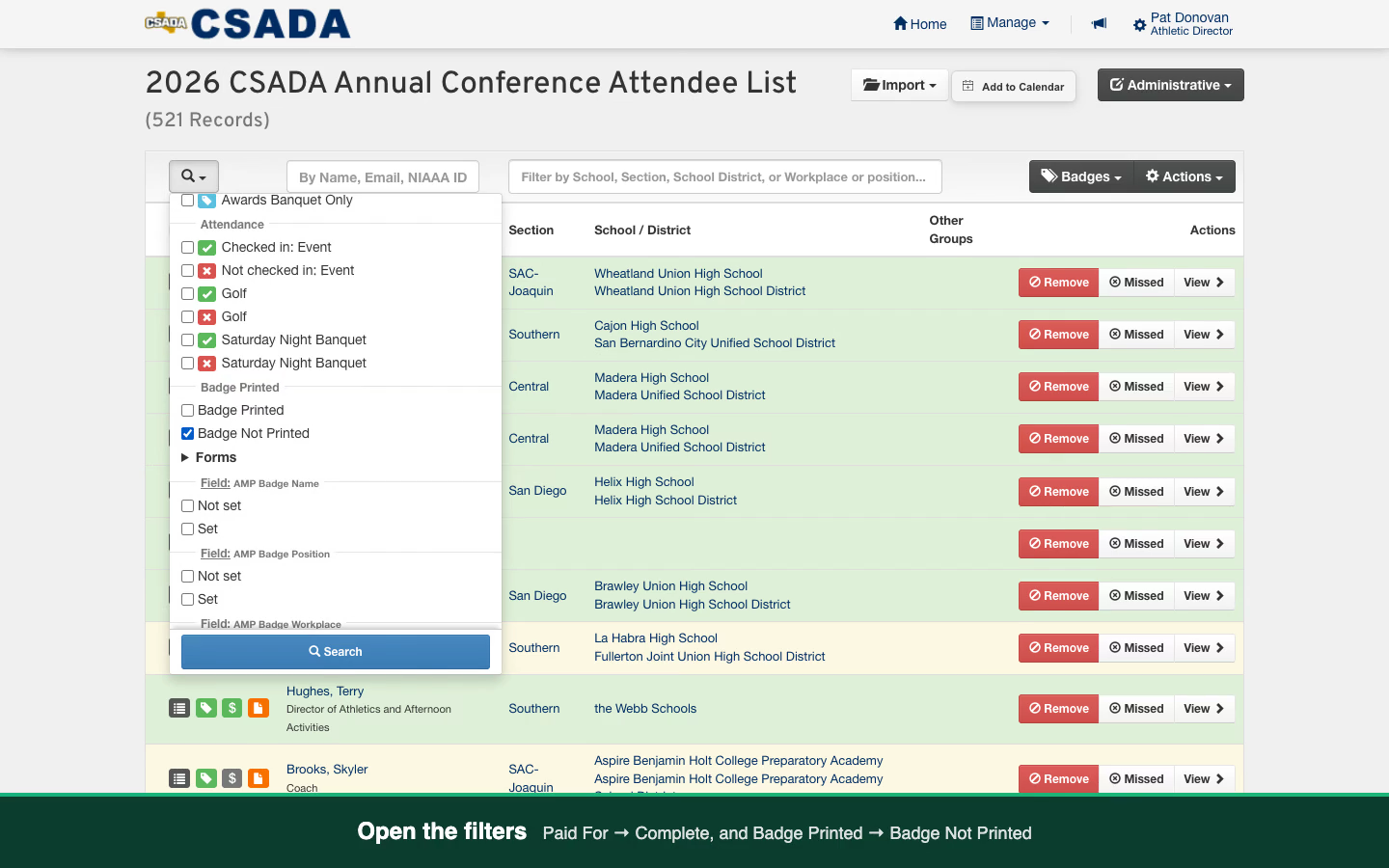
Open your event’s member list and open the filters. Check Complete under Paid For and Badge Not Printed under Badge Printed, then search.
- Use Paid For → Complete, not the Event Fees Only filter. Only Paid For carries paid guests onto the print sheet.
Print the current selection
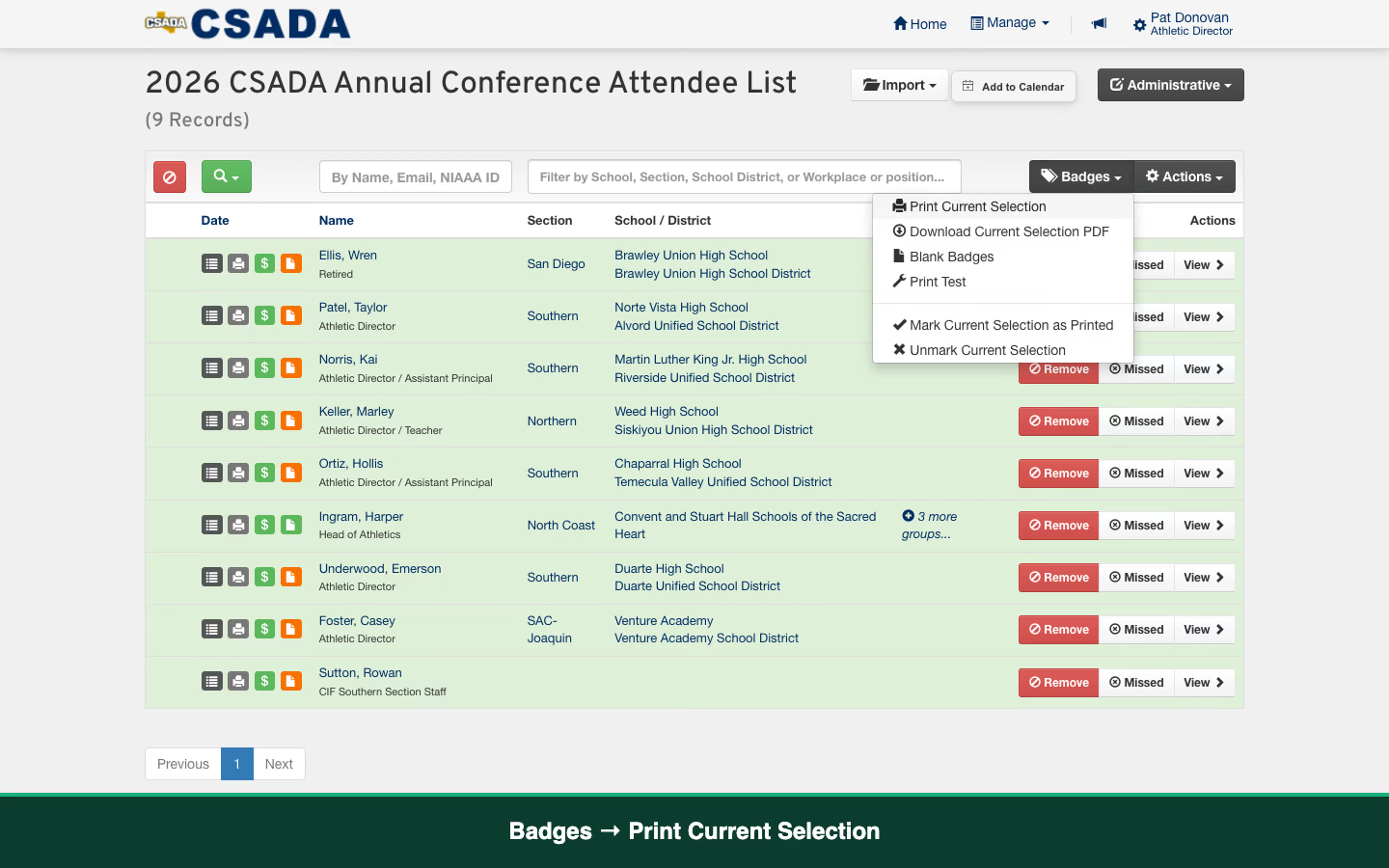
From the Badges menu, choose Print Current Selection. The badges open in a new tab, ready to print.
Print the sheet
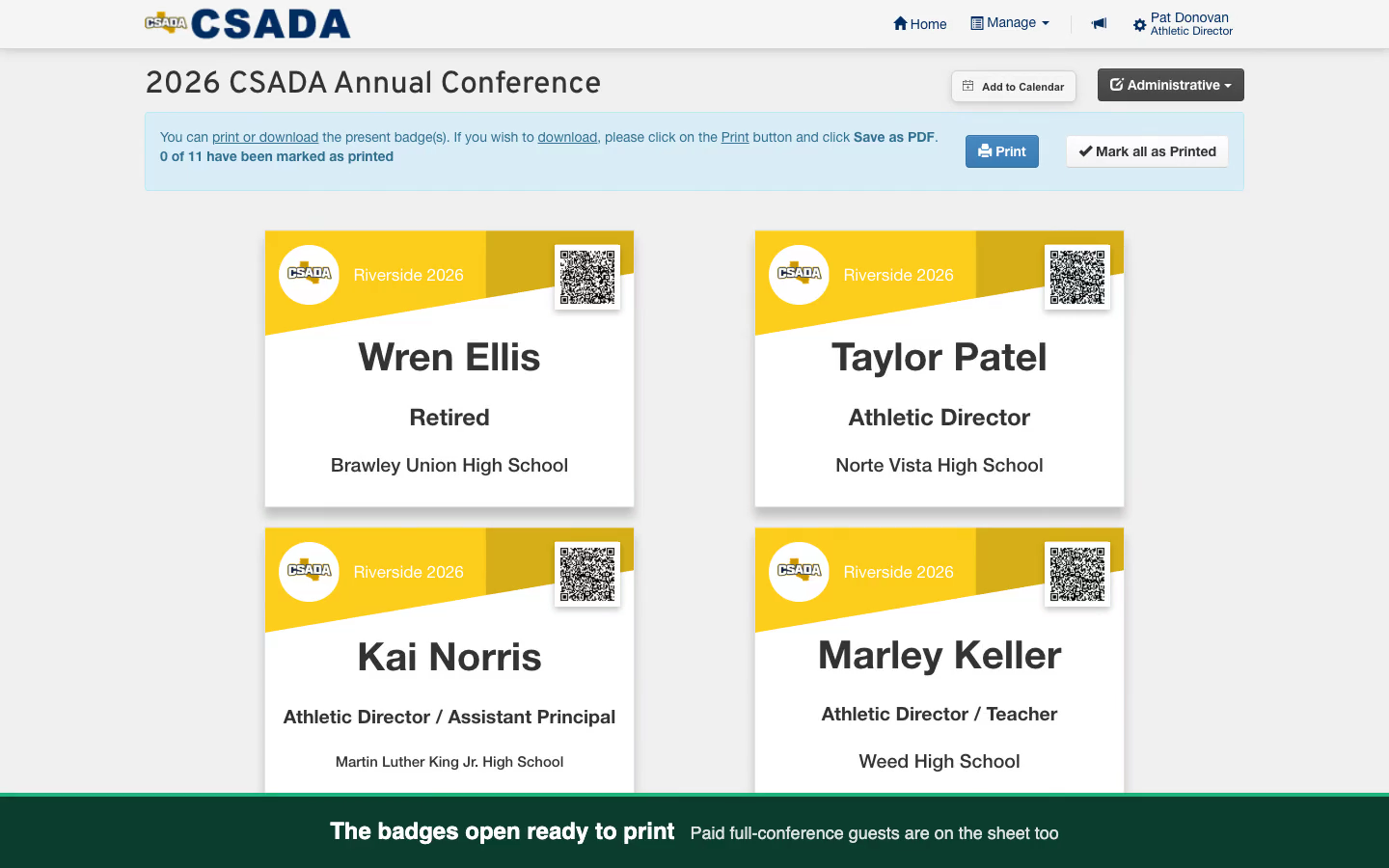
Paid full-conference guests print on the same sheet as the members who brought them. Print it the way you normally would.
- Guests who registered for the banquet only do not get a conference badge, so they are left off.
Mark them as printed
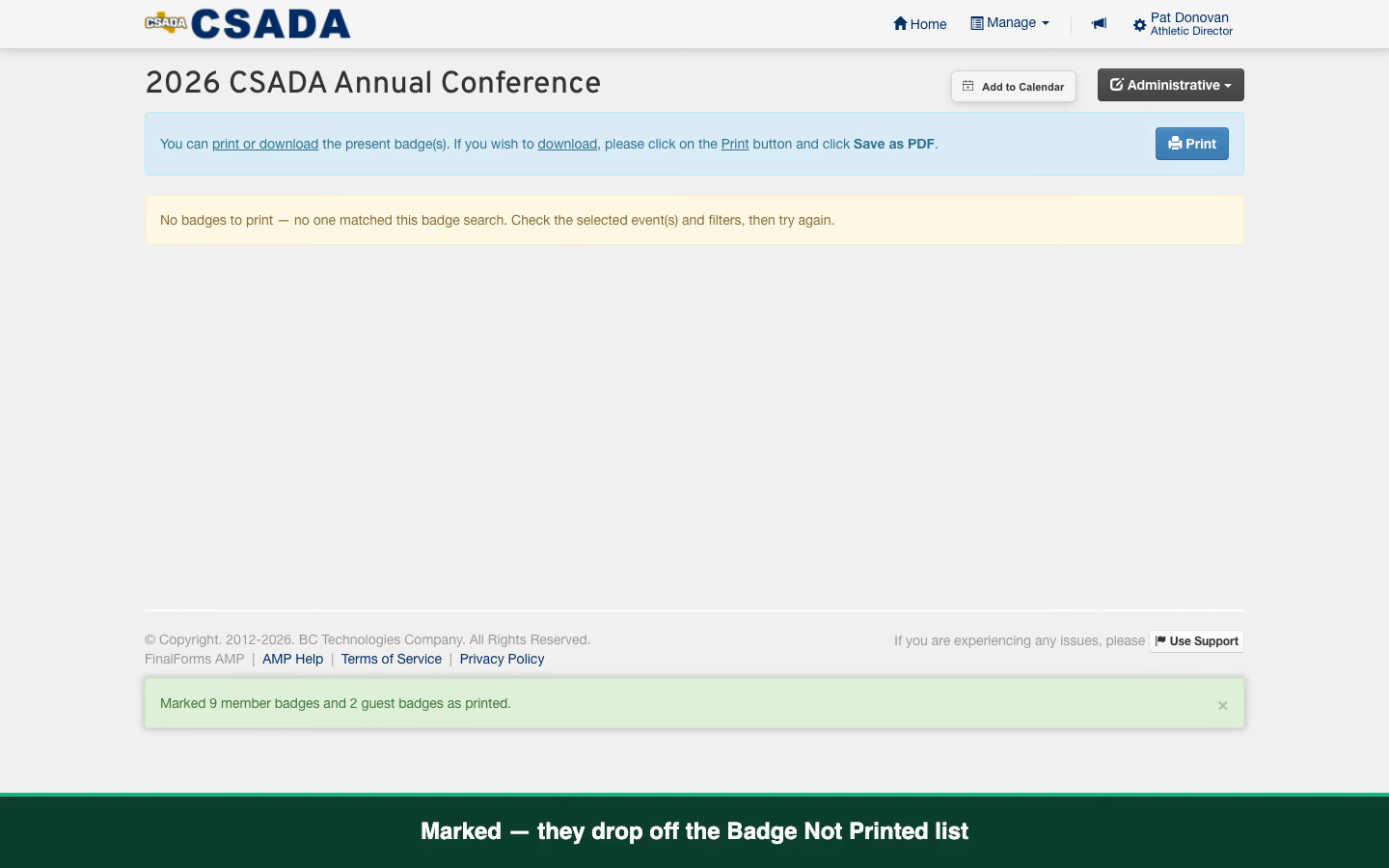
Printing does not mark anything. Once the sheets are out of the printer, click Mark all as Printed on the print page, or choose Badges → Mark Current Selection as Printed back on the list. Those badges drop off the Badge Not Printed list.
- Skip this step and tomorrow’s list prints the same people again.
- Only mark what actually printed. If the printer jammed, leave them unmarked and print again.
Subscribe to the list every morning
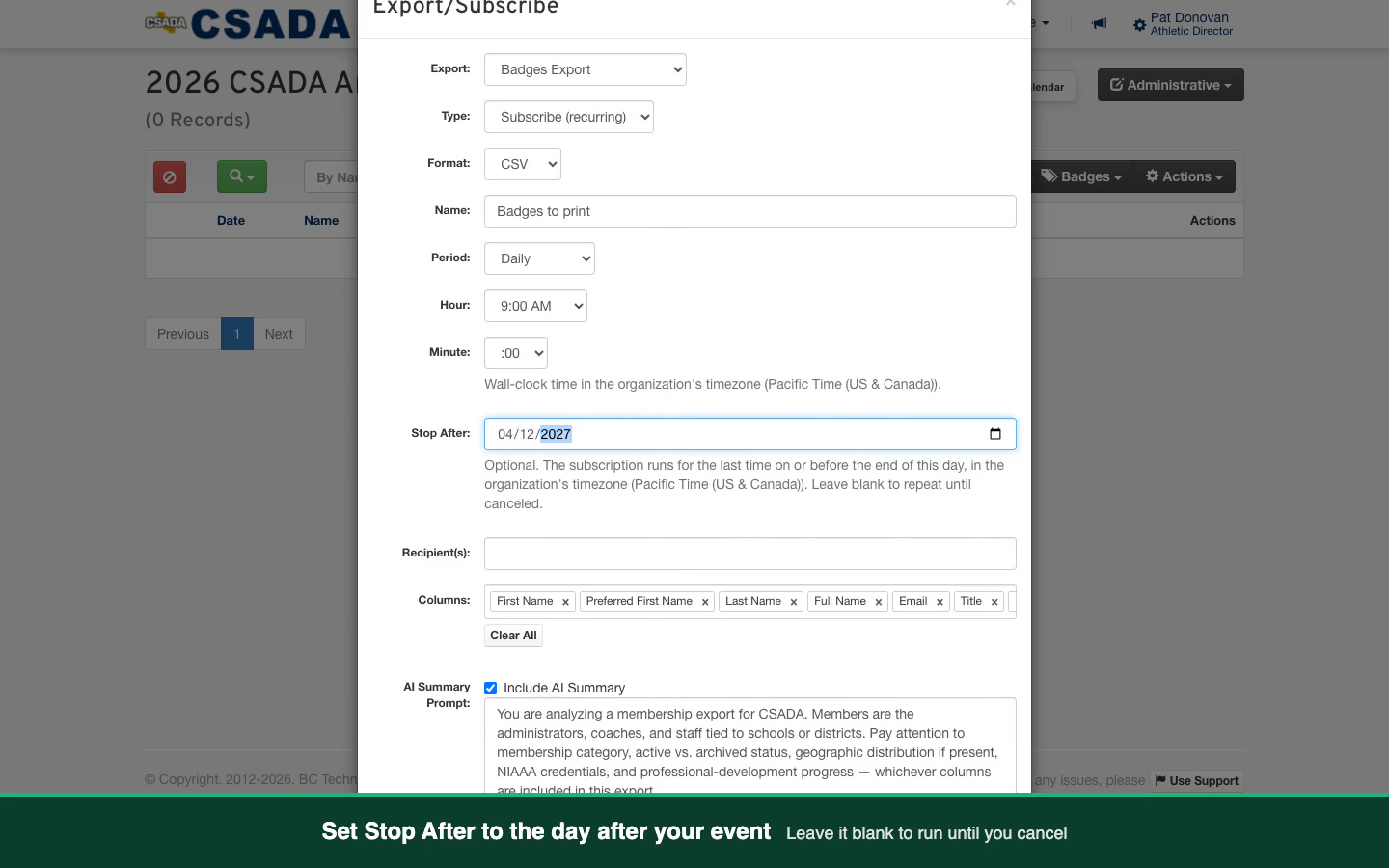
With the list still filtered, open Actions → Export. Choose Badges Export and Subscribe (recurring), give it a name, and pick Daily at the hour you want it.
- Set Stop After to a day after your event, or leave it blank to repeat until you cancel.
- Optionally add an AI summary prompt, such as how many badges are waiting and who is new.
Confirm the schedule
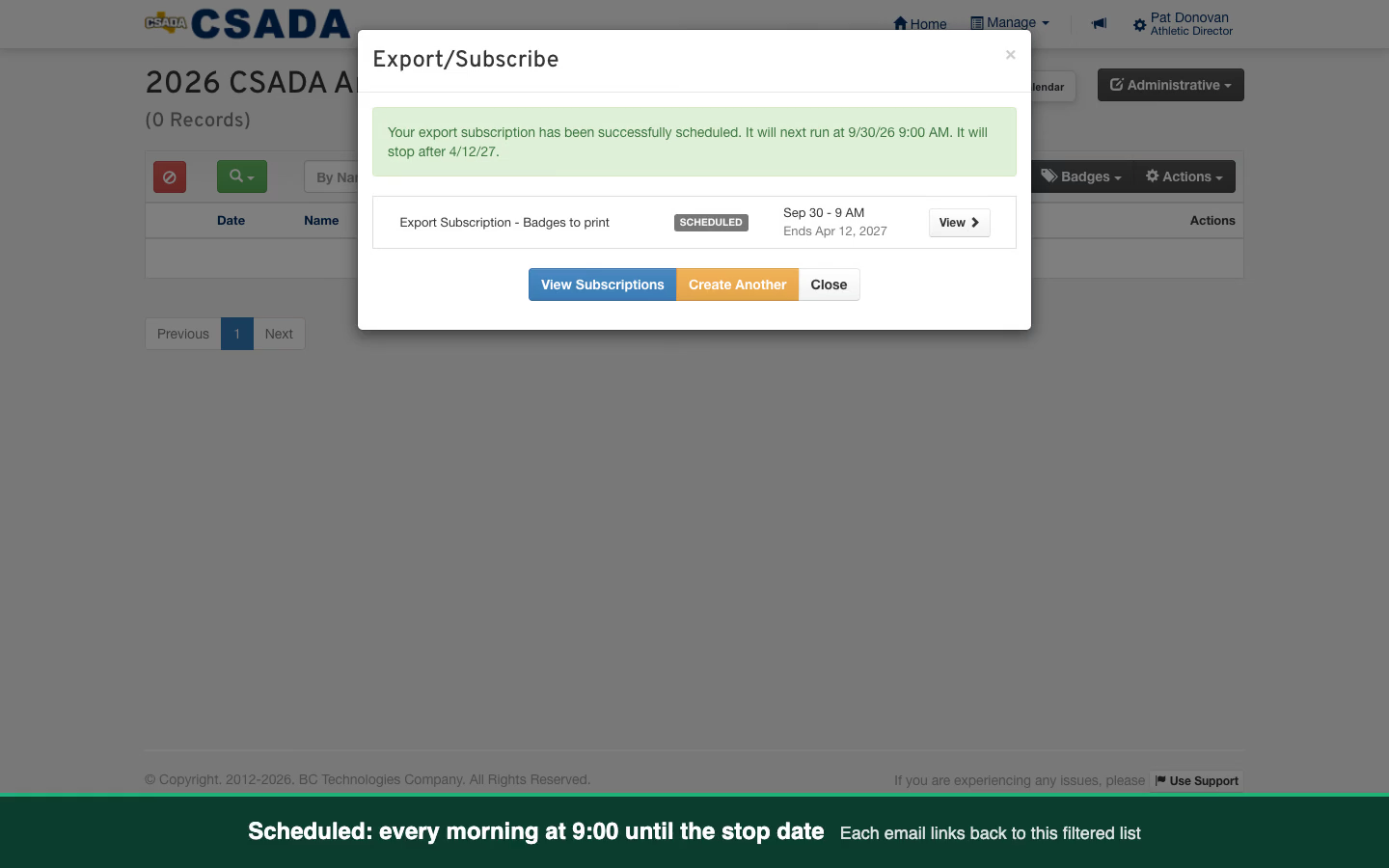
Click Subscribe. The confirmation tells you when it runs next and when it stops, and View Subscriptions lists it alongside your other scheduled exports.
What you end up with
A morning email with every paid badge that still needs printing, whether that person paid yesterday or three days ago. You print the sheet, mark it printed, and the next email starts from whoever is left.
Good to know
Reprints are one click. On the member list, click an attendee’s badge printed label to flip that one badge back to not printed, or use Badges → Unmark Current Selection for a whole filtered group. They reappear on the Badge Not Printed list until you print and mark them again.
Guests ride along only on registration filters. Paid full-conference guests join the print run when your filters are about the event registration: paid, badge printed, checked in. Add a member-only filter, such as a category or a name, and the run prints members only.
Each email links back to the live list. The subscription email’s View this subscription live link opens the same filtered list in your browser, where you can print and mark straight away.
The AI summary is optional. When you add a prompt, the list is sent to an outside AI service to write the summary at the top of each email. Leave the prompt blank to skip that.
Stop After uses your association’s timezone. The subscription runs for the last time on or before the end of that day.
Watch it end to end
Watch the full walkthrough (1:15). The narration is AI-generated.