
Purpose: When something changes in how you use AMP, we post it here as an AMP Feature, and each new post is also emailed once to association admins.
The problem this solves
When we add something to AMP, or change how something works, we write it up as an AMP Feature. Until now you saw those posts only if you happened to open the bullhorn, so a change could slip past you. From now on, each new post is also emailed to you once. This post is the first one sent that way.
Find new posts under the bullhorn
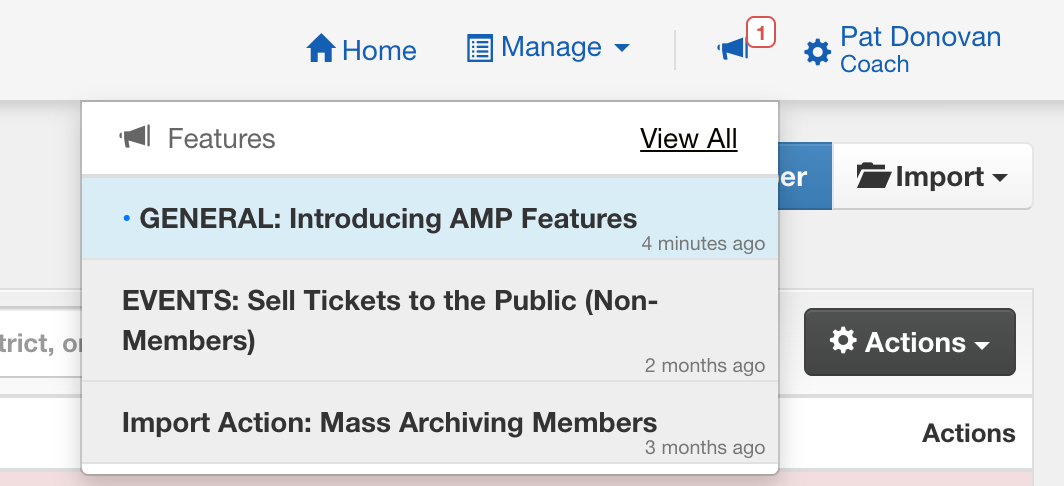
Every AMP Feature appears under the bullhorn icon in the top navigation, and View All lists every post. A red badge on the bullhorn counts the posts from the past week, up to three. The menu shows only the three newest posts, so a busy week can hold more than the badge shows.
- Each post covers what changed, who it is for, and how to use it.
- Some include screenshots or a short video.
- We post only when something changes how you use AMP, not for every small fix.
Unsubscribe or resubscribe
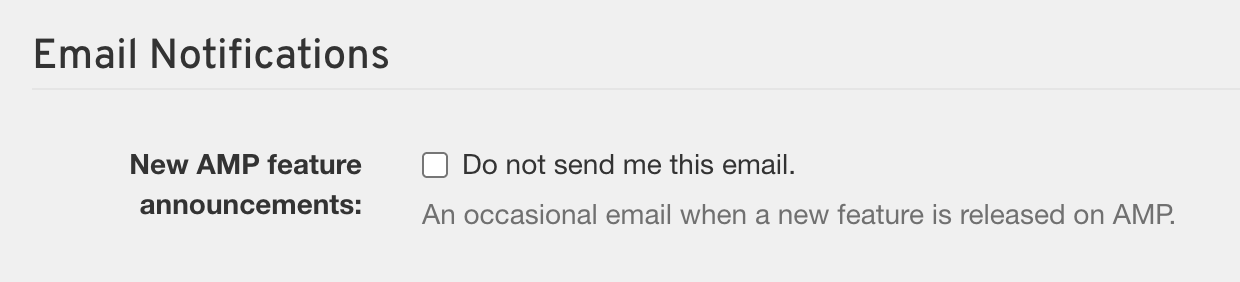
You can stop these emails whenever you like, and turn them back on later. You don’t need to contact support for either.
- From the email: click Unsubscribe at the bottom of any AMP Feature email, then click the Unsubscribe button on the page that opens. You don’t need to sign in.
- From your email program: some email programs show their own Unsubscribe button next to the sender. That works too.
- From AMP: open the menu under your name at the top right and choose Edit Profile. Under Email Notifications, find New AMP feature announcements, tick Do not send me this email, and save.
- To turn them back on: go to the same setting in Edit Profile, clear Do not send me this email, and save.
Good to know
Unsubscribing stops only these announcements. Registration, payment, and form emails keep arriving as usual.
The bullhorn still shows every post. Unsubscribing stops the email, not the posts. You can always catch up under the bullhorn or on View All.
An old email’s link eventually expires. The Unsubscribe link stops working about three months after the email was sent. If it says the link is no longer valid, use the setting in Edit Profile instead.
An admin in more than one association? Unsubscribing in any one of them stops these emails for you everywhere. To get them back, clear the box in each association where you ticked it.
Coming next. Watch for posts on the new search box in the Members directory, and on printing badges.