
Purpose: Show that a member, group or vendor import now keeps going after you leave the page, shows its results live, emails you when it is done, and is kept on a Past Imports page with its files.
The problem this solves
A large import used to tie up your browser: you had to keep the page open and wait, and if it closed you could not tell how far the import got. Imports of members, groups and vendors now run in the background. You can leave the page, the import keeps going, and you get an email when it is done.
Before you start
- You are an association administrator.
- A CSV file to import.
Choose your file
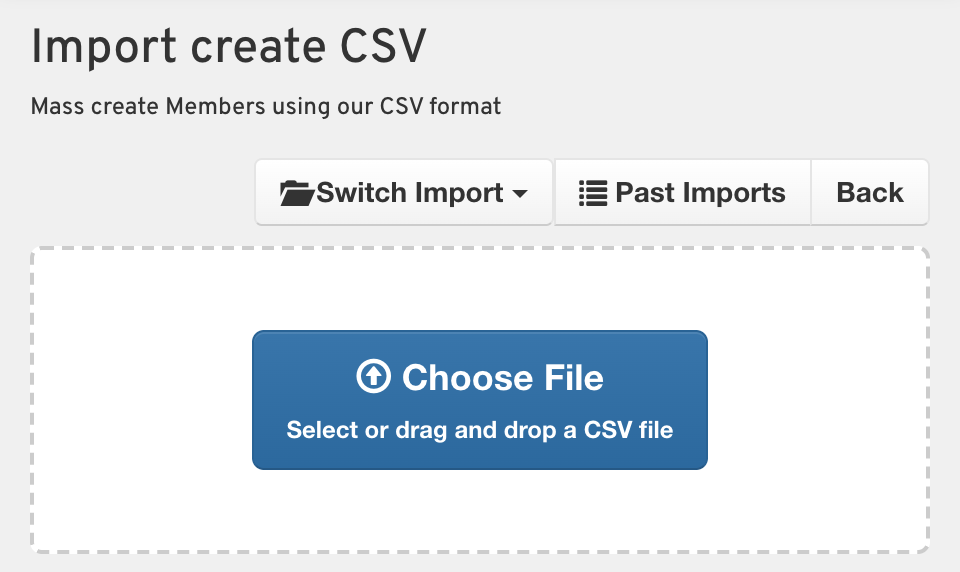
Open the import you need, such as Members, then Import, then Create Members. Click Choose File at the top of the page, or drag your CSV file onto the dashed box. The import starts as soon as the file is chosen.
Watch it run, or leave the page
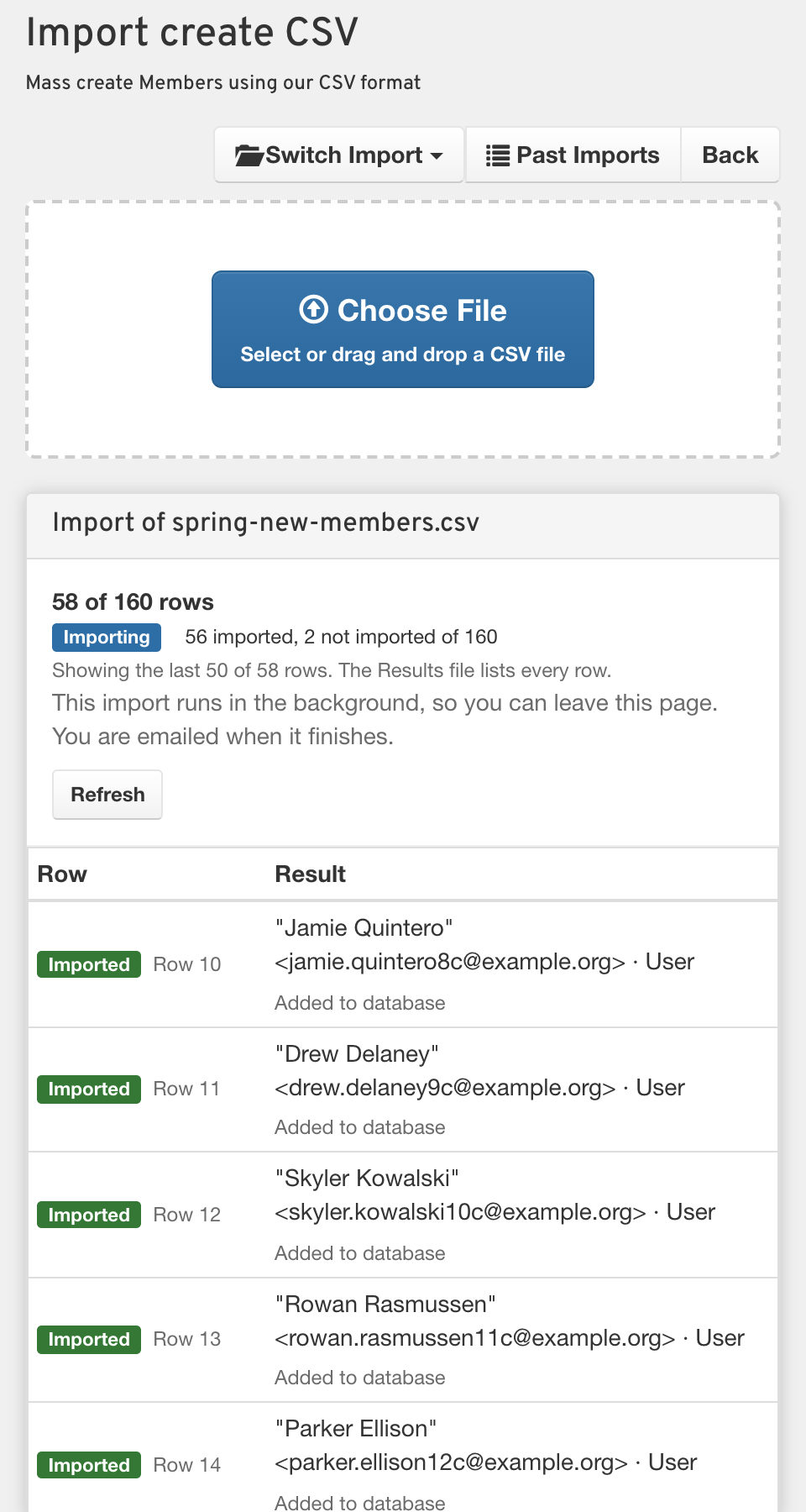
The page shows how many rows are done and lists each row’s result as it happens, without reloading. You do not have to wait for it. Close the page or move on to other work, and the import keeps going. When it finishes, AMP emails you.
Fix the rows that did not import
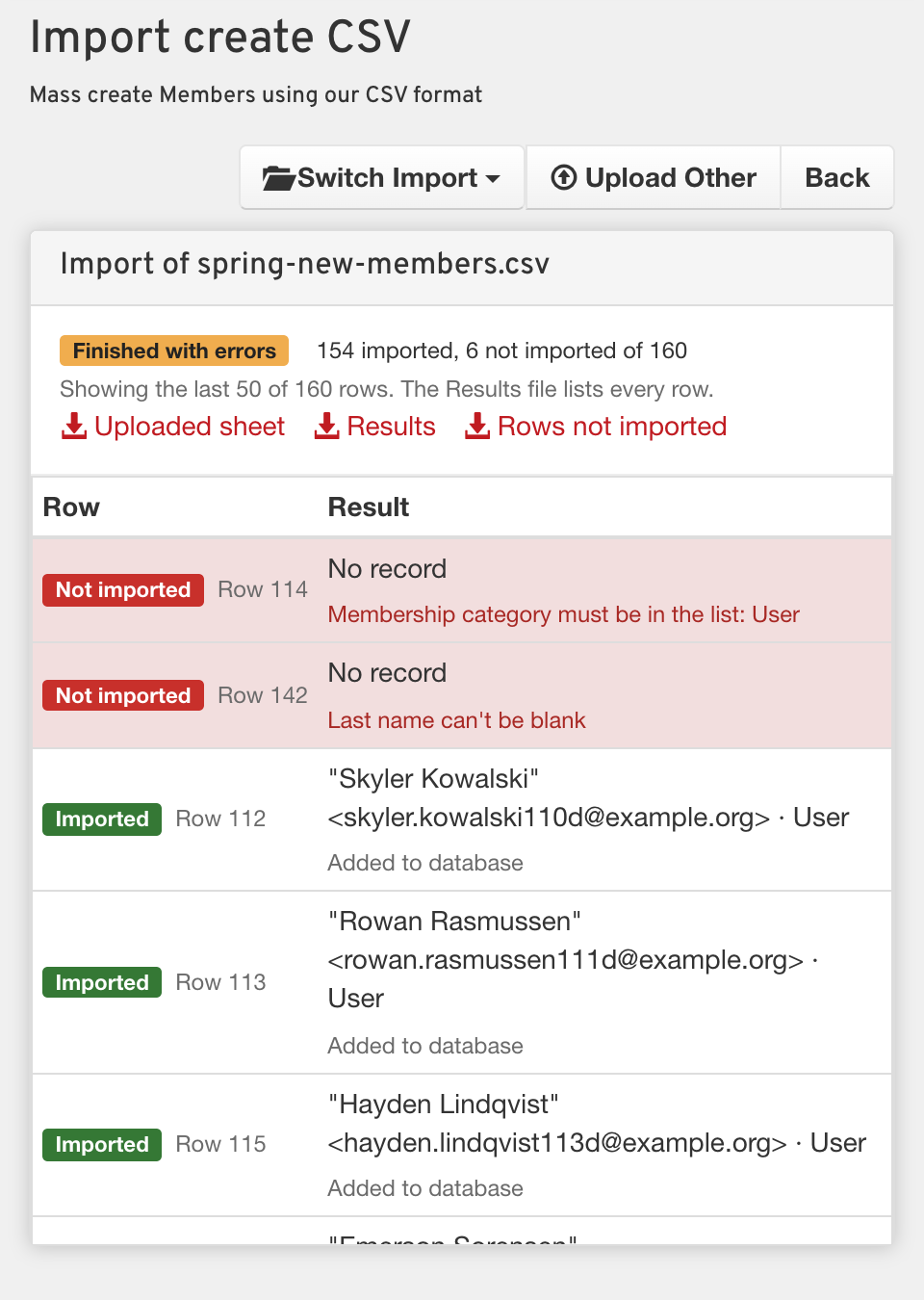
When the import is done, any rows that did not import sit at the top of the list, with the reason next to each one. To fix them:
- Click Rows not imported to download a file of just those rows.
- The file has your sheet’s own columns, plus an Errors column saying what to fix.
- Correct the rows, then upload that file again.
Results downloads every row with its result, and Uploaded sheet downloads the file you started with.
Find any import on the Past Imports page
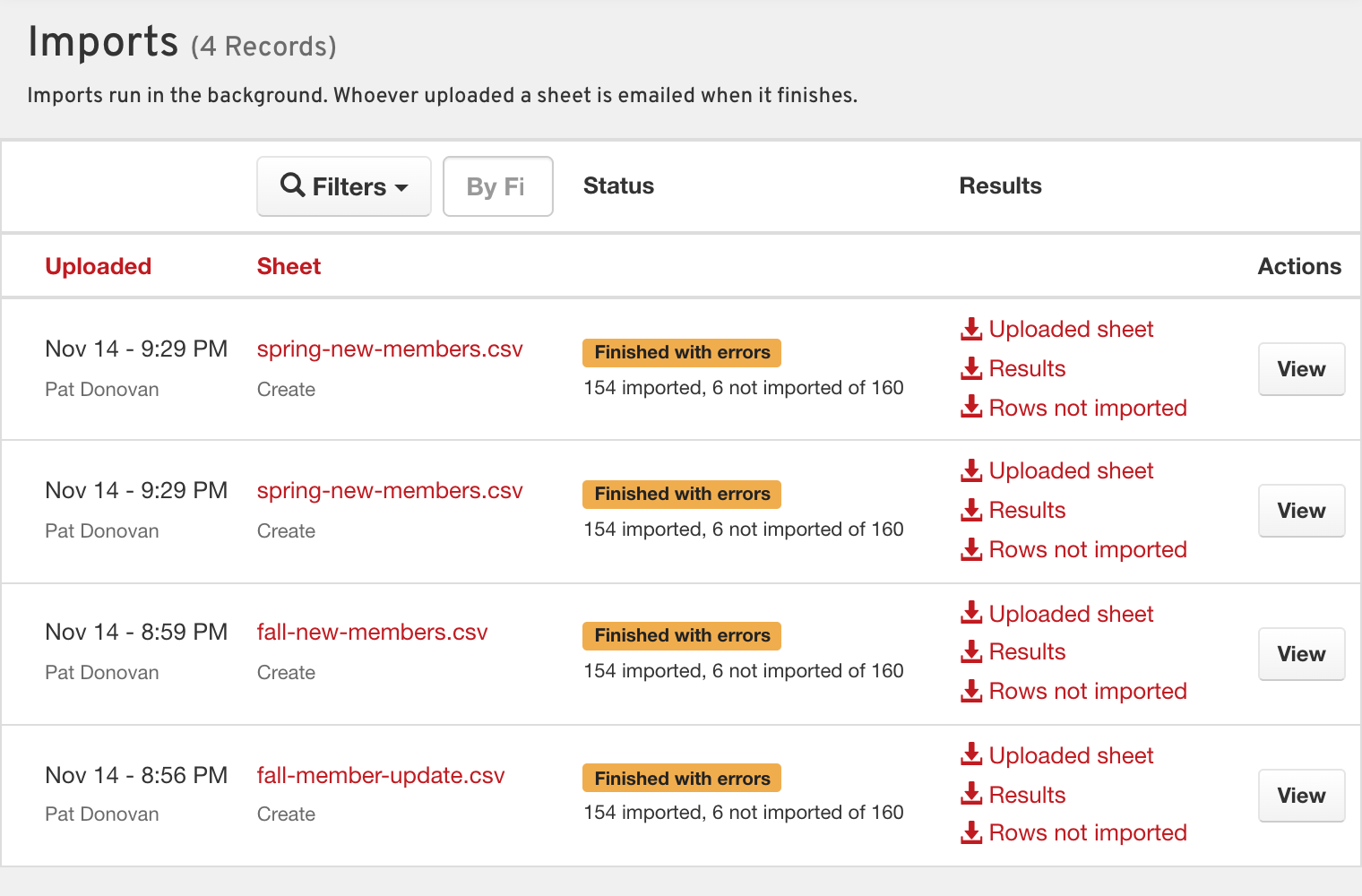
Click Past Imports at the top of any import page, or open Manage, then Site, then Imports. Each import shows who uploaded it, when, its status and how many rows imported. Its files are there to download again, and View opens its full results. Use Filters to narrow the list by who uploaded it, the kind of import, its status, an event or a group.
What you end up with
Imports that finish on their own while you do other work, an email when each one is done, the problem rows set apart and ready to fix, and a record of every import with its files.
Good to know
Your files stay private. The files on the Past Imports page are kept private.
Groups and vendors work the same way. Their imports also run in the background, show live results and appear on the Past Imports page.